Routes
The Routes module provides route planning, execution tracking, and deviation monitoring for units (vehicles/apparatus). It allows departments to define multi-stop routes, schedule them on a recurring basis, track real-time execution by units, and detect deviations from planned paths. The system integrates with Mapbox for route geometry and turn-by-turn navigation.
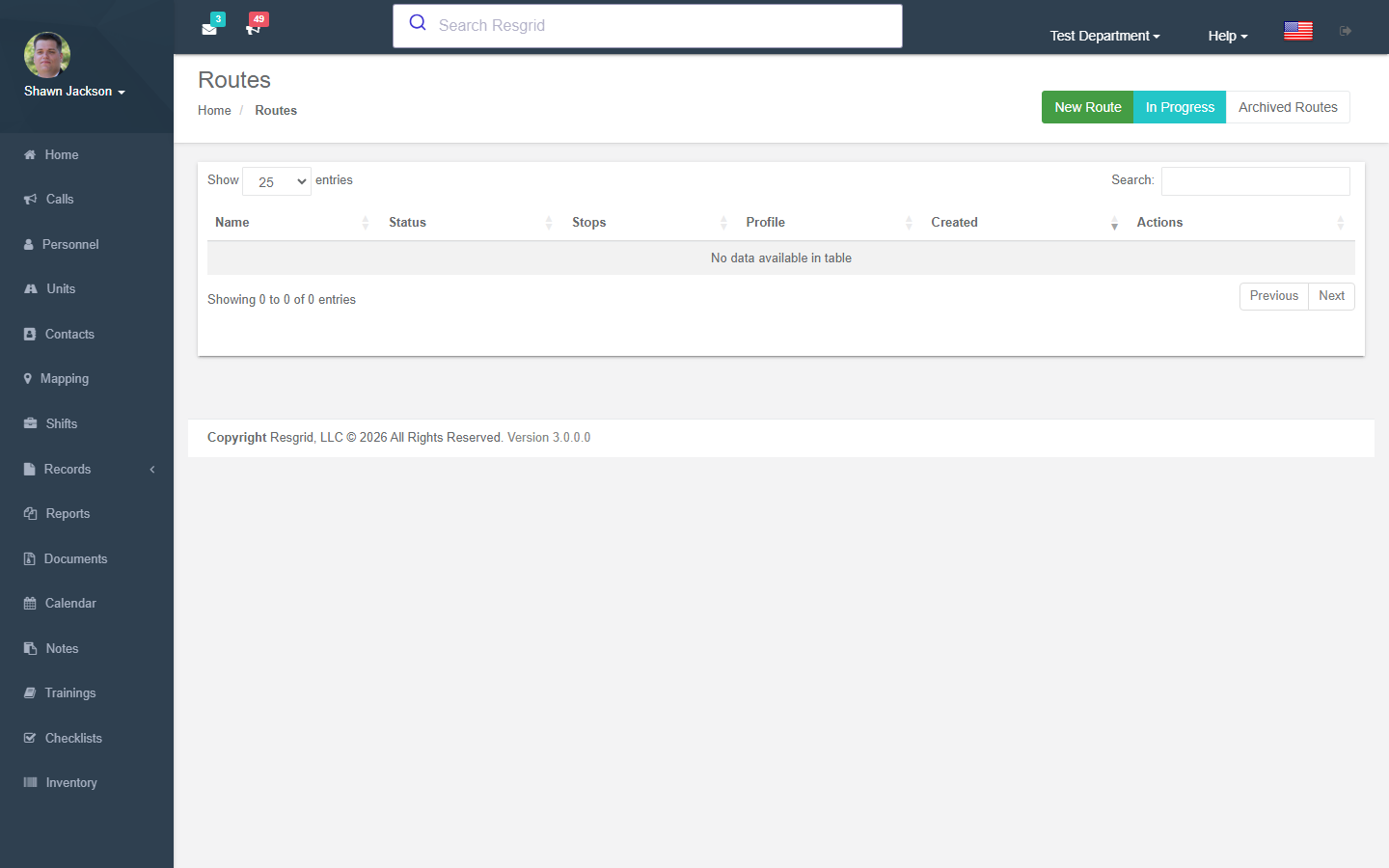
Navigation: Department Menu → Routes
Overview
The Routes system is built around six core concepts that work together to plan and execute routes:
Route Plan + Stops + Schedules → Start Route (Instance) → Execute Stops → End / Cancel
- A Route Plan is the reusable blueprint defining the path, stops, and settings
- Route Stops are the ordered waypoints within a plan
- Route Schedules define when a plan recurs automatically
- A Route Instance is the live execution record created when a unit starts a route
- Route Instance Stops track per-stop execution state (check-in, check-out, skipped)
- Route Deviations record when a unit strays from the planned path
Route Plans
Route Plans are the core reusable definitions for a route. They belong to a department and can optionally be assigned to a specific unit.
Navigation: Routes → Route Plans
Plan List
The plan list displays all route plans for the department with:
- Plan name and description
- Assigned unit (if any)
- Status badge (Draft, Active, Paused, Archived)
- Route color swatch
- Quick links to view, edit, and delete
Creating a Route Plan
Click New Route Plan to open the creation form.
| Field | Required | Description |
|---|---|---|
| Name | Yes | Display name for the route (max 250 characters) |
| Description | No | Optional description of the route's purpose |
| Status | Yes | Draft, Active, Paused, or Archived |
| Assigned Unit | No | Restricts the plan to a specific unit |
| Route Color | No | Hex color used for map rendering |
| Start Latitude / Longitude | Conditional | Explicit start coordinates (or use station) |
| End Latitude / Longitude | Conditional | Explicit end coordinates (or use station) |
| Use Station as Start | No | Use the unit's home station as the starting point |
| Use Station as End | No | Use the unit's home station as the ending point |
| Navigation Profile | Yes | Mapbox routing profile: Driving, Walking, Cycling, or Driving (Traffic) |
| Optimize Stop Order | No | Reorder stops automatically for efficiency |
| Geofence Radius (meters) | No | Default proximity radius for automatic stop check-in |
| Estimated Distance (meters) | No | Pre-computed route distance |
| Estimated Duration (seconds) | No | Pre-computed route duration |
Route Stops
Each plan contains an ordered list of stops added from the plan editor.
| Field | Required | Description |
|---|---|---|
| Stop Order | Yes | Integer position in the sequence (1, 2, 3, …) |
| Stop Type | Yes | Manual, Scheduled Call, Station, or Waypoint |
| Address | No | Human-readable address for the stop |
| Latitude / Longitude | Yes | Geographic coordinates of the stop |
| Geofence Radius (meters) | No | Per-stop override of the plan-level geofence radius |
| Priority | Yes | Normal, High, Critical, or Optional |
| Planned Arrival Time | No | Expected arrival time |
| Planned Departure Time | No | Expected departure time |
| Estimated Dwell (minutes) | No | How long the unit is expected to remain at the stop |
| Contact | No | Linked contact for service-delivery stops |
| Call | No | Linked Resgrid Call (for Scheduled Call stop types) |
| Notes | No | Free-form notes |
- Manual — A general-purpose stop at any location
- Scheduled Call — Links the stop to an existing Resgrid Call
- Station — A department station or group
- Waypoint — A path waypoint without a service interaction
Route Schedules
A plan can have one or more schedules that automatically create route instances on a recurring basis.
| Field | Required | Description |
|---|---|---|
| Recurrence Type | Yes | None, Daily, Weekly, Bi-Weekly, Monthly, or Custom |
| Recurrence Cron | Conditional | Cron expression (Custom recurrence only) |
| Days of Week | Conditional | Comma-separated days (Weekly / Bi-Weekly recurrence) |
| Day of Month | Conditional | Specific day number (Monthly recurrence) |
| Scheduled Start Time | No | Time-of-day for the route to begin |
| Effective From | No | Date the schedule becomes active |
| Effective To | No | Date the schedule expires |
| Active | Yes | Whether the schedule is currently enabled |
Editing and Deleting Plans
- Edit — Modify plan metadata, add/remove/reorder stops, and manage schedules inline
- Delete — Soft-deletes the plan (
IsDeleted = true); historical instances are preserved
Executing Routes
Starting a Route
From the Route Plans list or the unit view, click Start Route and select the plan and unit. This creates a Route Instance with status In Progress and initializes a pending execution record for every stop in the plan.
Stop Execution
As a unit progresses through the route, each stop can be acted on in three ways:
| Action | Description |
|---|---|
| Check In | Records arrival GPS coordinates and timestamp at the stop |
| Check Out | Records departure, computes dwell time, and advances the stop counter |
| Skip | Marks the stop as skipped and requires a reason |
Check-in can occur in three ways:
- Manual — Dispatcher or driver taps Check In
- Geofence — System automatically checks in when the unit's GPS position comes within the stop's geofence radius
- QR Code — Driver scans a QR code at the stop location
When a unit's GPS position is reported, the system uses the Haversine formula to determine whether the unit is within a stop's geofence radius. If within range, the system automatically records a check-in. Each stop can define its own radius; otherwise the plan-level default is used.
Pausing and Resuming
An active route can be Paused (e.g., for an unexpected delay) and later Resumed. The route instance status moves between In Progress and Paused accordingly.
Ending a Route
Click End Route to mark the instance as Completed. The system calculates total duration and records the actual route geometry.
Cancelling a Route
Click Cancel Route to abort an in-progress or paused route. A cancellation reason is required. The instance status is set to Cancelled.
Monitoring Active Routes
Active Routes View
Displays all route instances currently In Progress or Paused for the department, with:
- Unit name and assigned plan
- Status badge
- Stops completed vs. total stops
- Scheduled and actual start times
Route Progress
The detailed progress view for a specific route instance shows:
- Overall instance status and timing
- Per-stop execution state (Pending, Checked In, Checked Out, Skipped)
- Check-in/check-out timestamps and GPS coordinates
- Dwell time per stop
- Arrival deviation (negative = early, positive = late, in seconds)
- Any notes added to individual stops
Route History
From any Route Plan, click View History to see all past instances. The history list shows:
- Executing unit
- Actual start and end times
- Completion status
- Stops completed vs. planned
Deviations
Route Deviations are automatically recorded when a unit strays from the planned path.
Unacknowledged Deviations
Supervisors can view all unreviewed deviations for the department, including:
- Unit and route instance
- Detected timestamp and location
- Distance off-route (meters)
- Deviation type
Acknowledging a Deviation
Select a deviation and click Acknowledge to mark it as reviewed. The acknowledgment records the supervisor's user ID and timestamp.
Navigation and Directions
The Routes module integrates with Mapbox to provide turn-by-turn directions.
| View | Description |
|---|---|
| Plan Directions | Shows the full planned route geometry and all waypoints for a route plan |
| Live Directions | Shows remaining stops only (excluding completed and skipped stops) for an active instance; optionally uses the unit's current GPS position as the real-time origin |
Contacts Integration
Route stops can be linked to contacts from the Contacts module. This is useful for service delivery routes where each stop has an associated person or business.
- View the contact record directly from a stop in the plan editor or the execution view
- Contact information includes name, company, phone, email, address, and GPS coordinates
- The Route Contacts view lists all unique contacts across all stops in a plan
Scheduled Routes
View all active route schedules for the department under Routes → Scheduled Routes. Each entry shows the associated plan, recurrence type, next scheduled time, and whether the schedule is currently enabled.
Authorization
Access to Routes features is controlled by four permission levels:
| Permission | Allowed Actions |
|---|---|
| Route View | View plans, instances, history, deviations, directions, contacts |
| Route Create | Create new route plans |
| Route Update | Edit plans, start/end/pause/resume/cancel routes, check-in/check-out, acknowledge deviations |
| Route Delete | Delete route plans |
All data is scoped to the authenticated user's department — users can only see and manage their own department's routes.
Setup examples
| Department type | How to set it up |
|---|---|
| Fire | Hydrant inspection routes per district; pre-plan walk-through routes. |
| EMS / transport | Inter-facility transfer runs with linked calls per stop. |
| Delivery | Daily delivery routes with stops, dwell times and customer contacts; drivers run them in the Unit app. |
| Transit | Bus routes with timed stops; end-of-day summary as a Record. |
| Security | Patrol routes with checkpoint geofences. |