Workflows
Workflows are Resgrid's automation engine: when X happens, do Y. Pick a trigger (a call is created, a unit goes out of service, a record is finalized, a checklist fails, a work order is overdue, a form is submitted …), add optional conditions, and chain actions — send an email or SMS, post to Slack/Teams/Discord, call a webhook or REST API, upload a file, create a call, attach a Records export. Templates use the event's data, credentials are stored encrypted, and every run is logged with retries and a health view.
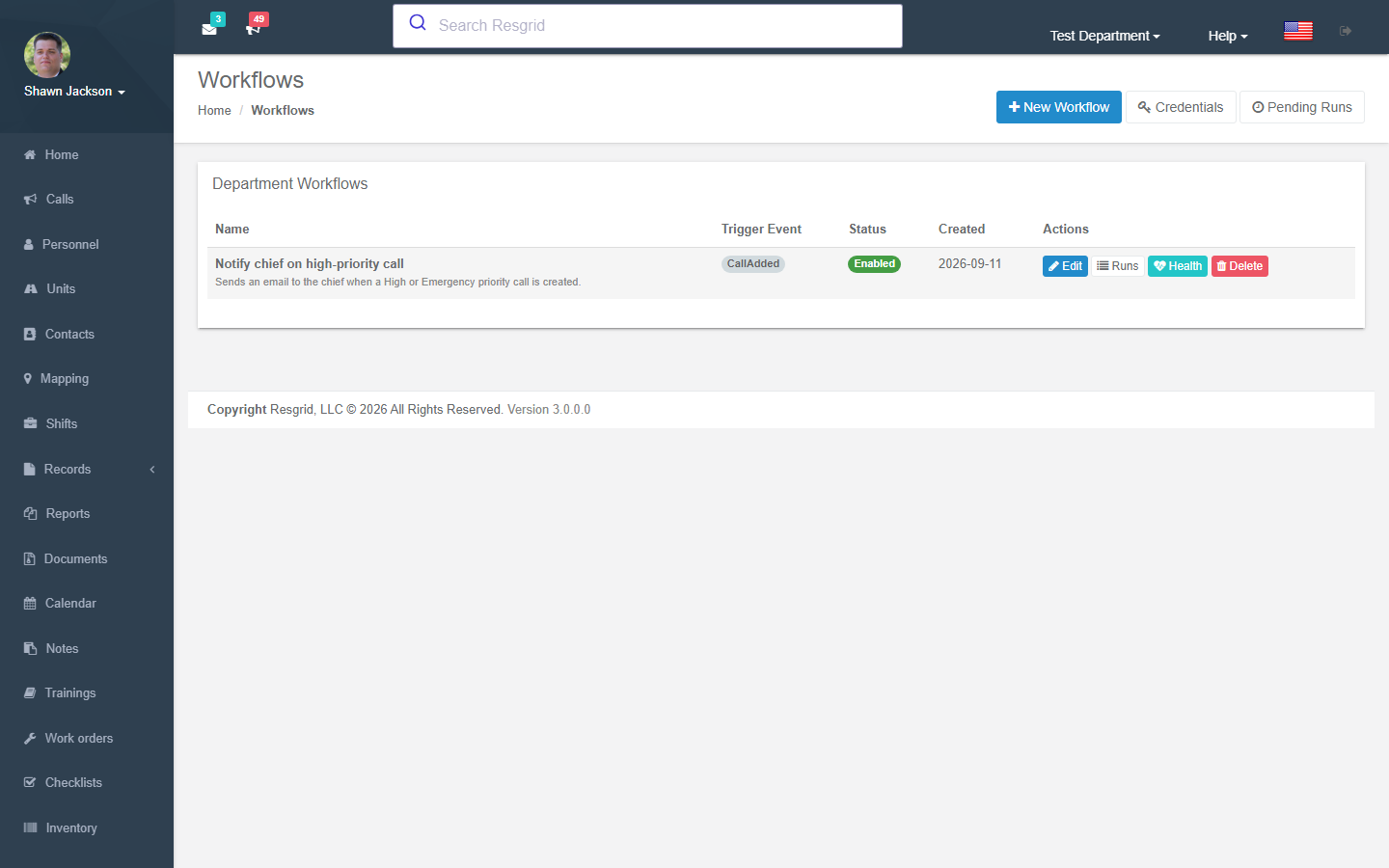
Department menu → Workflows. Start from the built-in templates or create a blank workflow; test with Run now on a past event before enabling.
Authorization: Department Admins only. Access is controlled via ClaimsAuthorizationHelper.IsUserDepartmentAdmin().
Navigation: Department Menu → Workflows
Overview
Workflows follow an Event → Transform → Action pipeline:
System Event Occurs → Match Active Workflows → Render Scriban Templates → Execute Action Steps → Log Results
- A system event fires (e.g., a new call is created, a unit changes status)
- Resgrid evaluates all active workflows for the department that subscribe to that event type
- For each matching workflow, the event data is transformed using user-defined Scriban templates
- The rendered output is passed to the configured action (send email, call API, etc.)
- Every execution is fully audited with run logs and per-step details
Workflow execution is asynchronous — events are enqueued to a message queue and processed in the background, ensuring no impact on the responsiveness of the core system.
Workflow List (Index)
Displays all workflows configured for the department with:
- Status indicators — Enabled/disabled toggle
- Last run status — Color-coded badge (green = success, yellow = retrying, red = failed)
- Success rate — Percentage badge based on recent runs
- Quick links to create, edit, view runs, and enable/disable workflows
Creating a Workflow
Navigate to Department → Workflows and click New Workflow.
A trigger can have any number of workflows. When the event happens, every enabled workflow on that trigger gets its own run, with its own steps, retries and history. Your plan limits how many workflows a department can have in total.
To start from a ready-made workflow, pick one under Start from a template: a JSON webhook for new calls or an email when a call closes. Departments using Protected Workflows also see the FHIR R4 and HL7 v2 EHR samples. A template creates the workflow disabled, with a placeholder destination and no credential, so nothing runs until you set the URL and credential on each step and enable it.
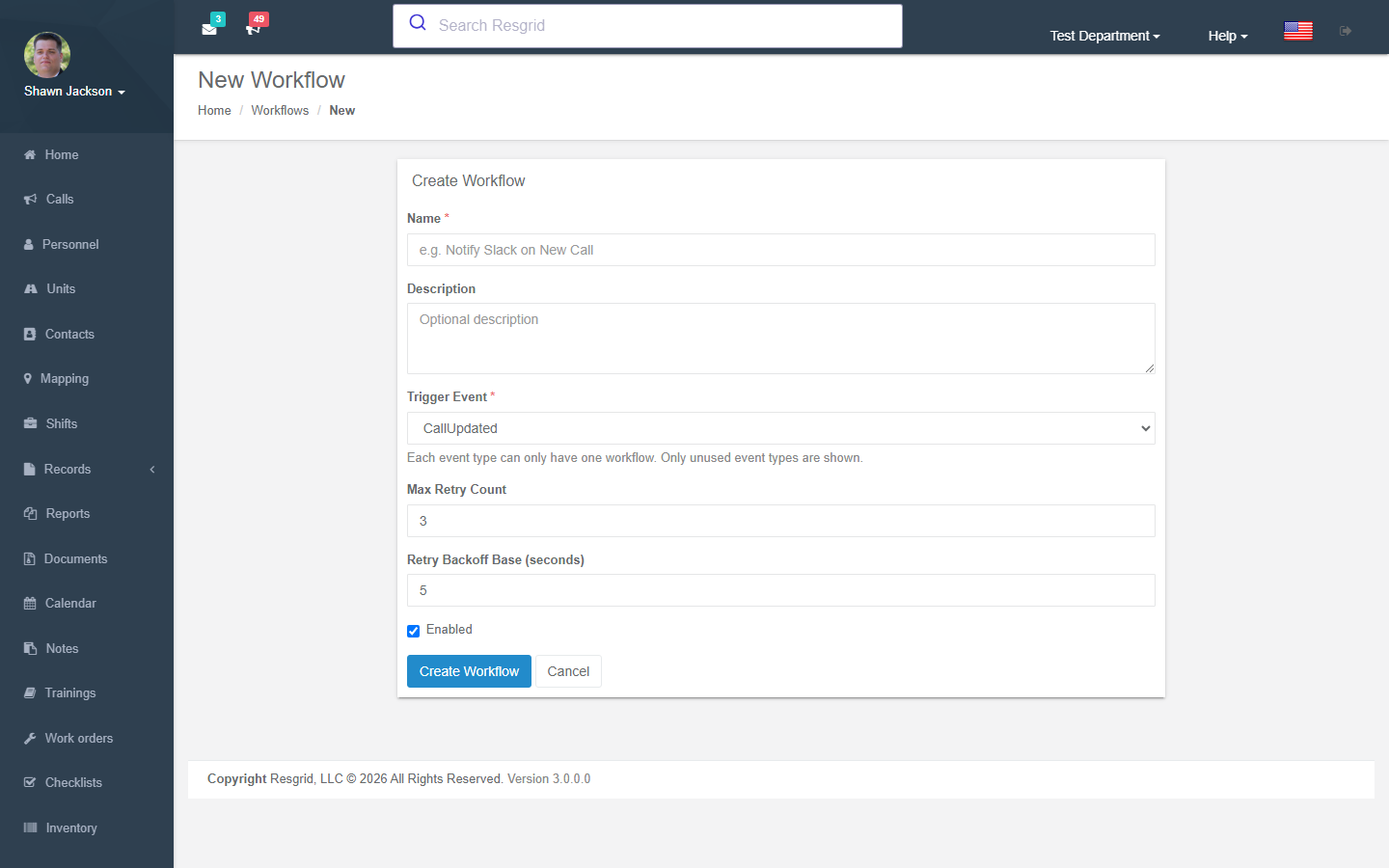
Workflow Fields
| Field | Required | Description |
|---|---|---|
| Name | Yes | A descriptive name for the workflow (max 250 characters) |
| Description | No | Optional description of the workflow's purpose (max 1000 characters) |
| Trigger Event Type | Yes | The system event that triggers this workflow (see Trigger Event Types) |
| Enabled | Yes | Whether the workflow is active (default: enabled) |
| Max Retry Count | No | Number of retry attempts on failure (default: 3, maximum: 5) |
| Retry Backoff Base (seconds) | No | Base delay for exponential backoff between retries (default: 5) |
Editing a Workflow
The edit view allows you to modify the workflow settings and manage its steps inline.
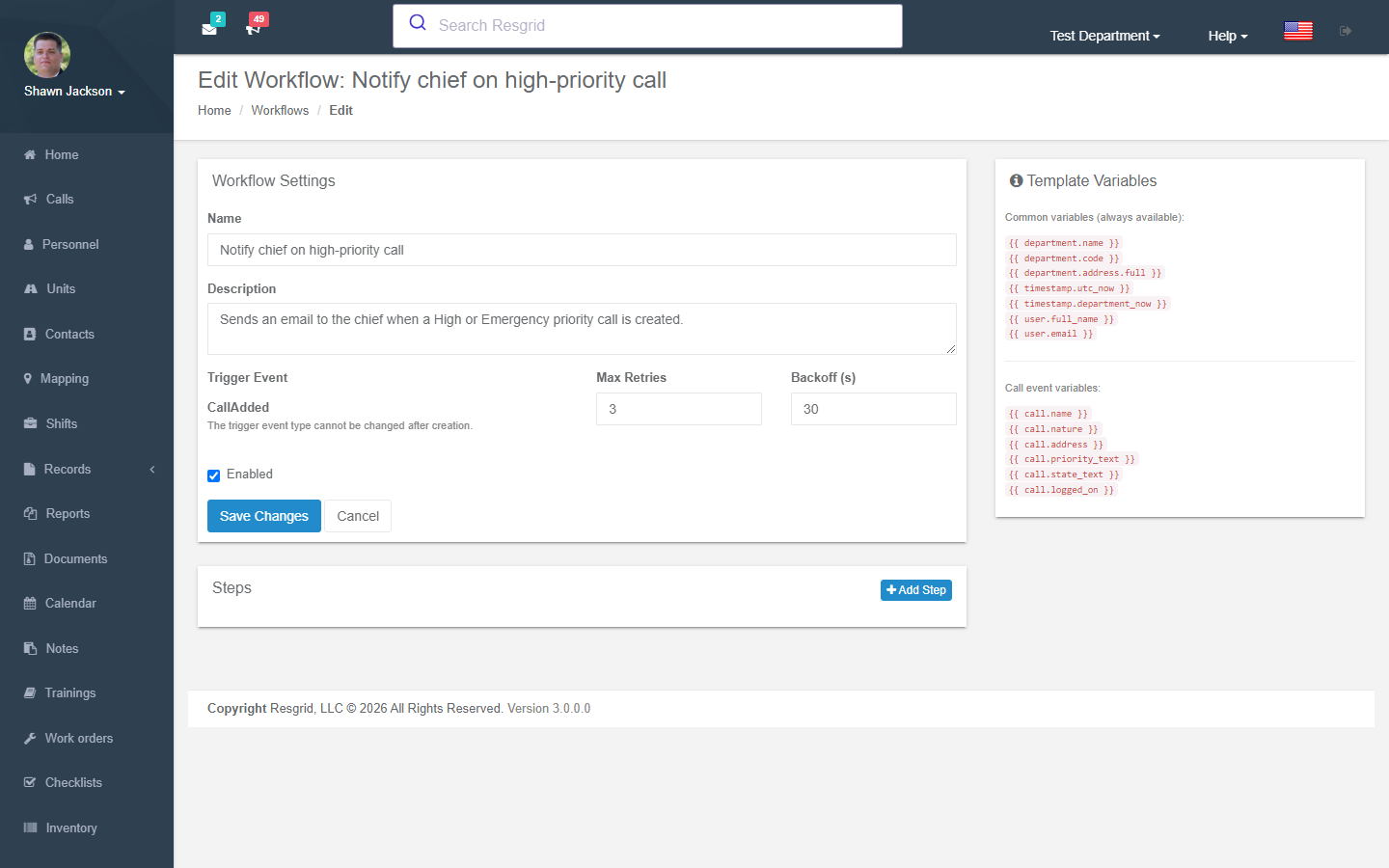
Workflow Steps
Each workflow can have one or more steps that execute in sequence. Each step defines:
| Field | Required | Description |
|---|---|---|
| Action Type | Yes | The action to perform (see Action Types) |
| Credential | Conditional | The stored credential to use (filtered by compatible credential types) |
| Output Template | Yes | A Scriban template that transforms event data into the action's input |
| Action Config | Conditional | Action-specific settings (e.g., email subject/recipients, API URL, S3 bucket) |
| Enabled | Yes | Whether this step is active (default: enabled) |
| Step Order | Yes | Execution order when multiple steps exist |
Steps are executed sequentially in Step Order. If a step fails, subsequent steps still execute (failures are logged per-step). Disabled steps are skipped.
Template Editor
The workflow editor embeds an Ace Editor with Scriban syntax highlighting for editing output templates. Features include:
- Syntax highlighting for Scriban template syntax (
{{ variable }},{% if %}, loops, etc.) - Variable side panel — Lists all available template variables for the selected trigger event type (e.g., for
CallAdded:{{ call.name }},{{ call.nature }},{{ call.address }}, etc.). Array variables are visually distinguished with a list icon and an "array" badge. Clicking an array variable inserts a Scribanforloop snippet instead of a simple variable reference. - Preview button — Renders the template with sample data and shows the output inline
- Test button — Triggers a real execution with sample data and shows the run result
Some event variables are arrays (e.g., call.unit_dispatches, call.notes_list). When you click an array variable in the side panel, a for loop snippet is inserted automatically:
{{ for unit in call.unit_dispatches }}
  {{ unit.unit_name }}
{{ end }}
Hover over an array variable to see the child properties available inside each iteration.
See the Workflows Configuration page for the full template variable reference.
Pass free text through json_escape, xml_escape or hl7_escape when you put it inside a JSON string, an XML document or an HL7 v2 field, for example "notes": "{{ call.notes | json_escape }}". A quote or line break in the value then can't break the payload. fhir_datetime and hl7_ts format a date in UTC for FHIR and HL7. See Workflow Variables.
Trigger Event Types
Workflows can subscribe to any of the following system events:
| Event | Description |
|---|---|
| Call Added | New call/dispatch created |
| Call Updated | Existing call updated |
| Call Closed | Call closed |
| Unit Status Changed | Unit status changed |
| Personnel Staffing Changed | Personnel staffing level changed |
| Personnel Status Changed | Personnel action status changed |
| User Created | New user added to department |
| User Assigned to Group | User assigned to a group |
| Document Added | Document uploaded |
| Note Added | Note created |
| Unit Added | Unit created |
| Log Added | Log entry created |
| Calendar Event Added | Calendar event created |
| Calendar Event Updated | Calendar event updated |
| Shift Created | Shift created |
| Shift Updated | Shift updated |
| Resource Order Added | Resource order created |
| Shift Trade Requested | Shift trade requested |
| Shift Trade Filled | Shift trade filled |
| Message Sent | New message sent |
| Training Added | Training created |
| Training Updated | Training updated |
| Inventory Adjusted | Inventory quantity changed |
| Certification Expiring | Personnel certification nearing expiry |
| Form Submitted | Form submitted |
| Personnel Role Changed | User role assignment changed |
| Group Added | Department group created |
| Group Updated | Department group updated |
| Invoice Created / Sent / Payment Recorded / Paid / Overdue / Voided / Payment Refunded / Payment Disputed | Invoicing lifecycle |
| Bid Created / Sent / Accepted / Declined / Expired | Bids |
| Contract Status Changed / Contract Expiring | Service contracts (expiring = 30 days before the end date) |
| Deployment Created / Status Changed / Roster Changed / Expense Added / Attachment Added | Deployment Finance |
| Time Report Created / Submitted / Approved / Voided | Daily time reports |
| Certification Added / Renewed / Expired / Role Removed / Status Changed / Removed / Credit Added | Certifications (people) |
| Unit Certification Added / Expiring / Expired / Status Changed / Removed | Certifications (units) |
Action Types
Each workflow step supports one of the following action types:
Communication Actions
| Action | Description | Credential Required |
|---|---|---|
| Send Email | Sends an email via SMTP. Template renders the HTML email body. Rendered HTML is automatically sanitized (scripts, iframes, event handlers, etc. are stripped). | SMTP (host, port, username, password, from address) |
| Send SMS | Sends an SMS message via Twilio. Template renders the message body. | Twilio (Account SID, Auth Token, from number) |
| Send Teams Message | Posts a message to Microsoft Teams via Incoming Webhook. Template renders the message body (plain text or Adaptive Card JSON). Webhook URL must target .webhook.office.com or .logic.azure.com. | Microsoft Teams (webhook URL) |
| Send Slack Message | Posts a message to Slack via Incoming Webhook. Template renders the message text (supports Slack mrkdwn). Webhook URL must target hooks.slack.com. | Slack (webhook URL) |
| Send Discord Message | Posts a message to Discord via Webhook. Template renders the message content (supports embed JSON). Webhook URL must target discord.com or discordapp.com with path /api/webhooks/. | Discord (webhook URL) |
API Actions
| Action | Description | Credential Required |
|---|---|---|
| Call API (GET) | Sends an HTTP GET request to a URL. HTTPS only; private/internal IPs blocked. | Optional (Bearer, Basic, or API Key) |
| Call API (POST) | Sends an HTTP POST request. Template renders the request body. HTTPS only; private/internal IPs blocked. | Optional |
| Call API (PUT) | Sends an HTTP PUT request. Template renders the request body. HTTPS only; private/internal IPs blocked. | Optional |
| Call API (DELETE) | Sends an HTTP DELETE request. HTTPS only; private/internal IPs blocked. | Optional |
File Upload Actions
| Action | Description | Credential Required |
|---|---|---|
| Upload File (FTP) | Uploads a file via FTP. Template renders the file content. | FTP (host, port, username, password) |
| Upload File (SFTP) | Uploads a file via SFTP. Template renders the file content. | SFTP (host, port, username, password/key) |
| Upload File (S3) | Uploads a file to Amazon S3. Template renders the file content. | AWS S3 (Access Key, Secret Key, Region, Bucket) |
| Upload File (Azure Blob) | Uploads a file to Azure Blob Storage. Template renders the file content. | Azure Blob Storage (Connection String, Container Name) |
| Upload File (Box) | Uploads a file to Box. Template renders the file content. | Box (JWT credentials or Developer Token) |
| Upload File (Dropbox) | Uploads a file to Dropbox. Template renders the file content. | Dropbox (OAuth2 refresh token, app key/secret) |
Action Configuration
Each action type has specific configuration fields set via Action Config:
Email Action Config
| Field | Required | Description |
|---|---|---|
| To | Yes | Recipient email address(es) |
| CC | No | CC email address(es) |
| Subject | Yes | Email subject line |
SMS Action Config
| Field | Required | Description |
|---|---|---|
| To | Yes | Recipient phone number(s) |
API Action Config
| Field | Required | Description |
|---|---|---|
| URL | Yes | The API endpoint URL |
| Headers | No | Custom HTTP headers (key-value pairs) |
| Content Type | No | Request content type (default: application/json) |
Teams Action Config
| Field | Required | Description |
|---|---|---|
| Title | No | Optional message title |
| Theme Color | No | Optional theme color (hex) |
Slack Action Config
| Field | Required | Description |
|---|---|---|
| Channel | No | Channel override |
| Username | No | Bot username override |
| Icon Emoji | No | Bot icon emoji |
Discord Action Config
| Field | Required | Description |
|---|---|---|
| Username | No | Username override |
| Avatar URL | No | Avatar URL override |
File Upload Action Config (FTP/SFTP)
| Field | Required | Description |
|---|---|---|
| Remote Path | Yes | Destination directory on the server |
| Filename | Yes | Filename template for the uploaded file |
S3 Action Config
| Field | Required | Description |
|---|---|---|
| Key/Path | Yes | S3 object key/path |
Azure Blob Action Config
| Field | Required | Description |
|---|---|---|
| Blob Name/Path | Yes | Blob name or path template |
| Content Type | No | Blob content type |
Box Action Config
| Field | Required | Description |
|---|---|---|
| Folder ID | Yes | Target Box folder ID |
| Filename | Yes | Filename template |
Dropbox Action Config
| Field | Required | Description |
|---|---|---|
| Target Path | Yes | Destination path in Dropbox |
| Filename | Yes | Filename template |
| Write Mode | No | Overwrite or add (default: add) |
Workflow Credentials
Credentials store the authentication details needed by workflow actions (SMTP passwords, API keys, webhook URLs, etc.). All credentials are encrypted at rest using AES-256 encryption with department-specific key derivation, ensuring each department's secrets are isolated.
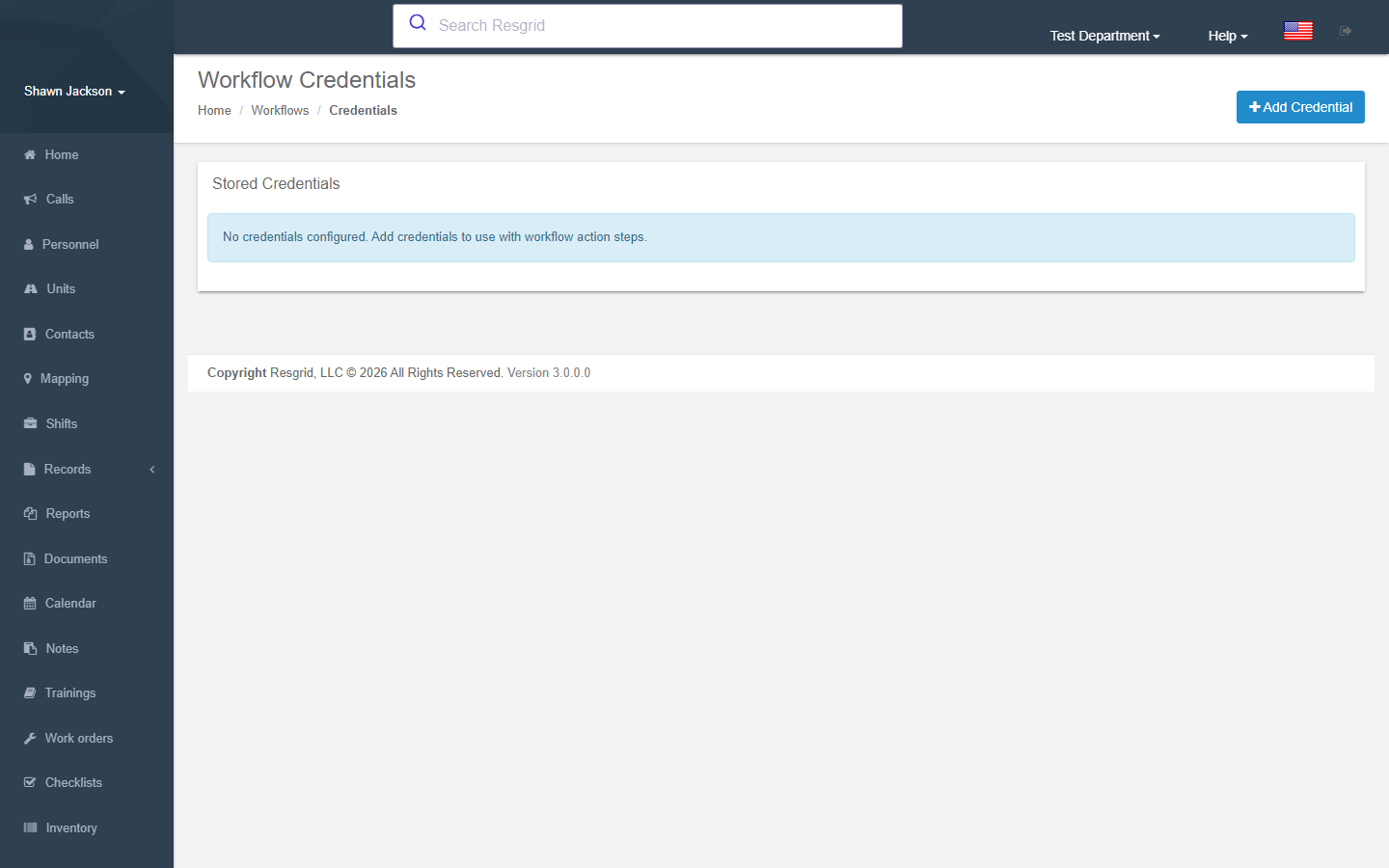
Managing Credentials
Navigate to Department → Workflows → Credentials to manage stored credentials.
- Credentials are grouped by type for easy browsing
- Secret values are always displayed as
••••••— they are write-only and never returned in responses - When editing a credential, existing secret values are preserved unless you explicitly provide new values
Credential Types
| Type | Fields |
|---|---|
| SMTP | Host, Port, Username, Password, Use SSL, From Address |
| Twilio | Account SID, Auth Token, From Number |
| FTP | Host, Port, Username, Password |
| SFTP | Host, Port, Username, Password/Private Key |
| AWS S3 | Access Key, Secret Key, Region, Bucket |
| HTTP Bearer | Bearer Token |
| HTTP Basic | Username, Password |
| HTTP API Key | Header Name, API Key Value |
| Microsoft Teams | Webhook URL |
| Slack | Webhook URL |
| Discord | Webhook URL |
| Azure Blob Storage | Connection String (or Account Name + Account Key), Container Name |
| Box | Developer Token or JWT credentials (Client ID, Client Secret, Enterprise ID, Private Key) |
| Dropbox | App Key, App Secret, OAuth2 Refresh Token |
| OAuth2 Client Credentials | Token URL (https), Client ID, Scope, Audience (optional), and a client authentication: Client secret, or Private key JWT (SMART Backend Services, RS384 or ES384) where Resgrid generates and keeps the key pair and publishes the public key at /api/v4/workflow-credentials/{id}/jwks.json. The HTTP action fetches a bearer token and reuses it until 60 seconds before it expires. Use it for Microsoft Dataverse, Entra-protected Azure Functions or Logic Apps, and FHIR EHRs. |
HTTP Bearer, HTTP Basic and HTTP API Key credentials are applied from their type, so the stored fields need no extra authType.
Creating a Credential
Click New Credential and select the credential type. Fill in the type-specific fields — all secret fields are encrypted before storage.
Workflow Runs (Execution History)
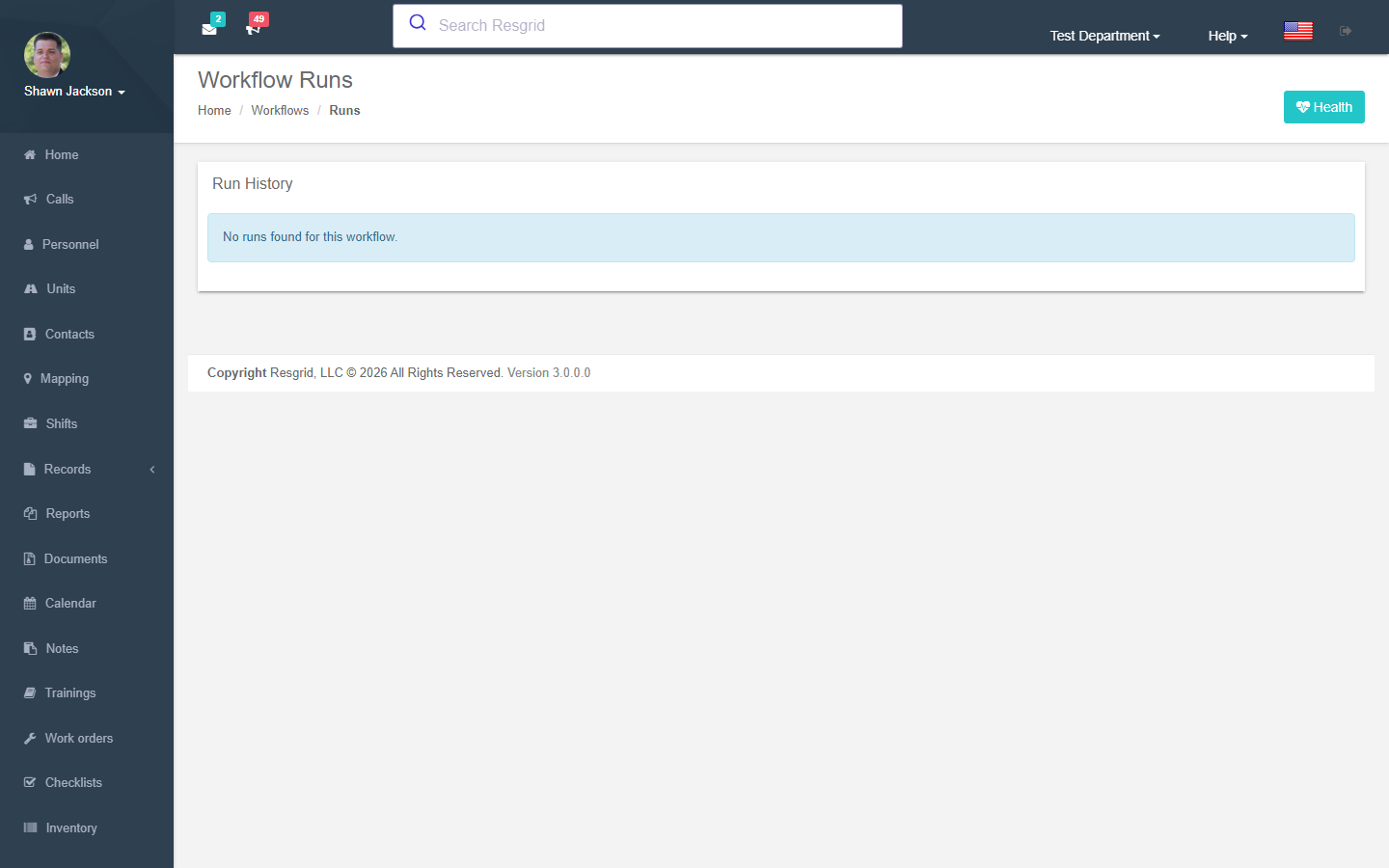
The Runs view provides a paginated audit trail of all workflow executions:
| Column | Description |
|---|---|
| Timestamp | When the workflow execution started |
| Workflow Name | The workflow that was triggered |
| Status | Color-coded badge: Pending, Running, Completed, Failed, Cancelled, Retrying |
| Duration | Total execution time |
| Attempt | Current attempt number (if retrying) |
| Error Summary | Brief error description (if failed) |
Click a run to expand and see per-step WorkflowRunLog detail, including:
- Rendered template output
- Action result (HTTP status, SMTP response, etc.)
- Error messages
- Duration per step
Filtering Runs
Filter runs by:
- Status — Pending, Running, Completed, Failed, Cancelled, Retrying
- Date range — Start and end date
- Workflow — Specific workflow
Workflow Health
The Health view provides per-workflow health metrics:
| Metric | Description |
|---|---|
| Success/Failure counts | Broken down by 24h, 7d, and 30d windows |
| Success rate | Percentage of successful runs |
| Average duration | Mean execution time |
| Last run timestamp | When the workflow last executed |
| Last error | Most recent error message |
| Recent run timeline | Visual timeline of recent executions |
Pending Runs
The Pending view lists all currently pending and in-progress workflow runs for the department. Actions available:
- Cancel — Cancel an individual pending run
- Clear All — Cancel all pending runs for the department (with confirmation dialog)
Protected Workflows (Advanced Data Protection)
In a department with Advanced Data Protection, workflow templates receive REDACTED in place of protected values. An administrator can approve a specific workflow as a Protected Workflow. It can then send selected fields, available as protected.call.*, to one pinned HTTPS destination through API POST or PUT steps. Any later edit to the workflow sends the approval back for re-approval. Every send is recorded in a disclosure log.
Protected API steps also have delivery options for EHR integration: a checked content type (JSON, FHIR JSON, XML, SOAP, HL7 v2), a success rule (for example an HL7 AA acknowledgement), response values saved encrypted on the call, and an idempotency header. See EHR integration.
Setup examples
| Department type | How to set it up |
|---|---|
| Volunteer fire | Call created (High/Emergency) → email the chief and post to the department Discord; Certification expiring → email the member and training officer; Unit out of service → SMS the apparatus officer. |
| Career fire | Record finalized (NERIS) → upload the export to the state fire marshal SFTP nightly; Work order overdue → Teams channel post; Call closed → webhook to the city records system. |
| EMS | Call created → API call to the billing/ePCR system with call number and address; Checklist failed (narcotics count) → email the medical director. |
| SAR | Call created → SMS the mutual-aid coordinator; Message sent (deployment poll) → collect responses into a webhook to a spreadsheet. |
| Emergency management | Call created (Activation) → email every ESF lead and create the EOC incident channel; Weather alert received → Slack post. |
| Security / business | Call closed → email the client contact a summary (from a Records export); Form submitted (incident form) → create a work order via API. |
Technical reference
WorkflowsController; routes /User/Workflows/{Index,New,Edit,Runs,RunDetail,Health,Pending,Credentials,CredentialNew,CredentialEdit}; permissions CreateWorkflow, ManageWorkflowCredentials, ViewWorkflowRuns; execution by the workflow worker with retry/back-off; templates sandboxed (see Workflow variables and Workflows API).
Retry Behavior
When a workflow step fails:
- If
Attempt Number < Max Retry Count, the run is re-enqueued with exponential backoff delay (Retry Backoff Base × 2^(attempt - 1)seconds) - Status is set to Retrying during the delay
- If max retries are exceeded, status is set to Failed with the final error message
- All retry attempts are visible in the run logs for auditing
The Max Retry Count has a server-side ceiling of 5 to prevent infinite retry abuse.
A Protected Workflow retries only failures another attempt could fix: a connection error, a timeout, a 5xx or a 429. Anything else (a 4xx, a rejected acknowledgement, an invalid payload) fails the run at once and notifies the department administrators.
Template Sandboxing
Scriban templates are executed in a sandboxed environment to prevent abuse:
| Protection | Limit |
|---|---|
| Loop iterations | 500 maximum |
| Recursion depth | 50 maximum |
| Regex timeout | Enforced to prevent ReDoS |
| Output template size (save time) | 64 KB |
| Rendered content size | 256 KB |
import / include built-ins | Disabled |
Dynamic Action Config Fields
All text fields in action configuration (email Subject, To, CC, filenames, URLs, etc.) are rendered through the Scriban template engine at execution time. You can use {{ }} expressions in any config field:
- Subject:
New Call: {{ call.name }} - Filename:
report_{{ timestamp.date }}.csv - Recipient:
{{ user.email }}
Security Protections
SSRF Prevention
HTTP API calls, FTP, and SFTP actions enforce:
- HTTPS only for HTTP calls
- Blocking of private/internal IP ranges (RFC 1918, loopback, link-local, cloud metadata
169.254.169.254) - Configurable domain allowlist/blocklist
Webhook URL Validation
Chat platform webhook URLs are validated against expected vendor domains:
- Teams:
.webhook.office.comor.logic.azure.com - Slack:
hooks.slack.com - Discord:
discord.comordiscordapp.comwith/api/webhooks/path
Email HTML Sanitization
Rendered email body HTML is sanitized before sending. Dangerous elements (<script>, <iframe>, <object>, <embed>, <form>), on* event attributes, and javascript: URLs are stripped. Standard formatting tags are preserved.
Rate Limiting
Workflow execution is rate-limited per department to prevent a single department from flooding the system. Limits are tiered by subscription plan:
| Limit | Free Plan | Paid Plans |
|---|---|---|
| Executions per minute | 5 | 60 |
| Daily run limit | 50 | Unlimited |
Free-plan rate limits are strictly enforced with no exemptions — no event types bypass the limit.
Workflow and Step Limits
The number of workflows and steps per department is capped based on subscription plan:
| Limit | Free Plan | Paid Plans |
|---|---|---|
| Workflows per department | 3 | 28 |
| Steps per workflow | 5 | 20 |
| Credentials per department | 2 | 20 |
| Max retry count (ceiling) | 5 | 5 |
Daily Send Limits
Outbound email and SMS messages sent via workflows are subject to daily limits:
| Channel | Free Plan | Paid Plans |
|---|---|---|
| Emails per day | 10 | 500 |
| SMS per day | 5 | 200 |
When the daily limit is reached, further email/SMS steps will fail with a clear error. Limits reset at midnight UTC.
Recipient Caps
To prevent bulk messaging abuse, the number of recipients per outbound step is capped:
| Action | Free Plan | Paid Plans |
|---|---|---|
| Email To + CC | 1 (no CC) | 10 |
| SMS To | 1 | 5 |
Interactions with Other Modules
| Module | Interaction |
|---|---|
| Dispatch & Calls | Call Added, Call Updated, Call Closed events trigger workflows |
| Units | Unit Status Changed, Unit Added events trigger workflows |
| Personnel | Personnel Staffing/Status Changed, User Created, Role Changed events |
| Groups & Stations | User Assigned to Group, Group Added/Updated events |
| Documents | Document Added events trigger workflows |
| Notes | Note Added events trigger workflows |
| Logs | Log Added events trigger workflows |
| Calendar | Calendar Event Added/Updated events trigger workflows |
| Shifts | Shift Created/Updated, Trade Requested/Filled events |
| Messages | Message Sent events trigger workflows |
| Trainings | Training Added/Updated events trigger workflows |
| Inventory | Inventory Adjusted events trigger workflows |
| Forms | Form Submitted events trigger workflows |
| Notifications | Workflows complement notifications — notifications handle push/SMS to personnel, while workflows enable external integrations |
| Resource Orders | Resource Order Added events trigger workflows |
| Certifications | Certification Expiring events trigger workflows (via daily scheduled check) |