Checklists
Checklists are the daily, per-shift, weekly and periodic checks your crews already do on paper — apparatus checks, start-of-shift inspections, personal gear checks, facility walk-throughs, safety audits. Resgrid lets you build them once, schedule them, hand them to the right people, and keep a tamper-evident record of what was checked, when, by whom, and with what evidence.
Checklists are included with every Resgrid plan. The optional Work Orders / Maintenance follow-up (turning a failed check into a repair ticket automatically) is part of the paid Readiness Pro add-on — see Work Orders.
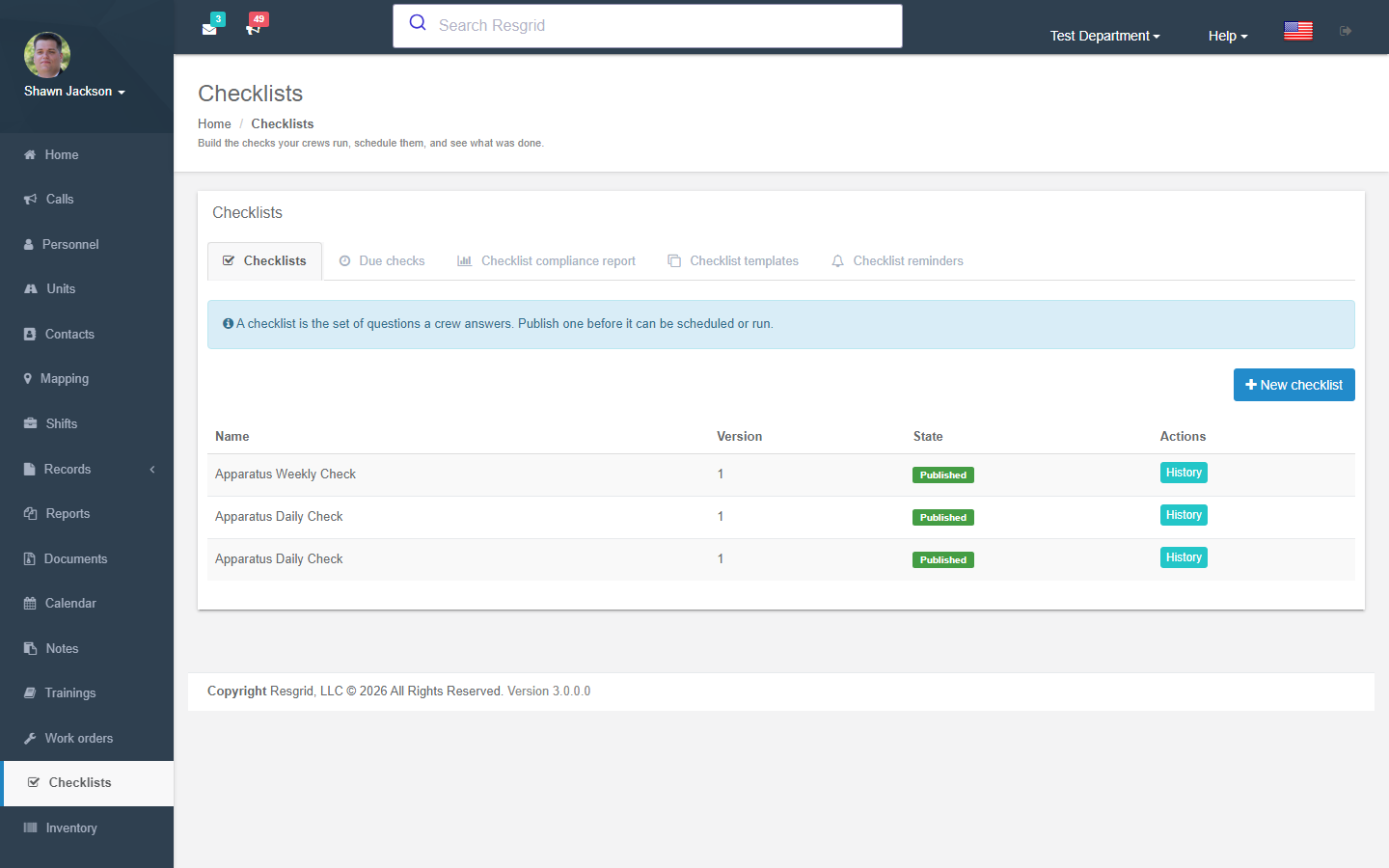
Where to find it
Left menu → Checklists. The module has five tabs across the top:
| Tab | What it is for |
|---|---|
| Checklists | The library of checklist definitions your department owns. Create, edit, publish and retire here. |
| Due checks | Everything that is scheduled or overdue for the next seven days — the "what do I need to do today" list. |
| Checklist compliance report | Completion rate, on-time rate and missed-deadline trend for a date range. |
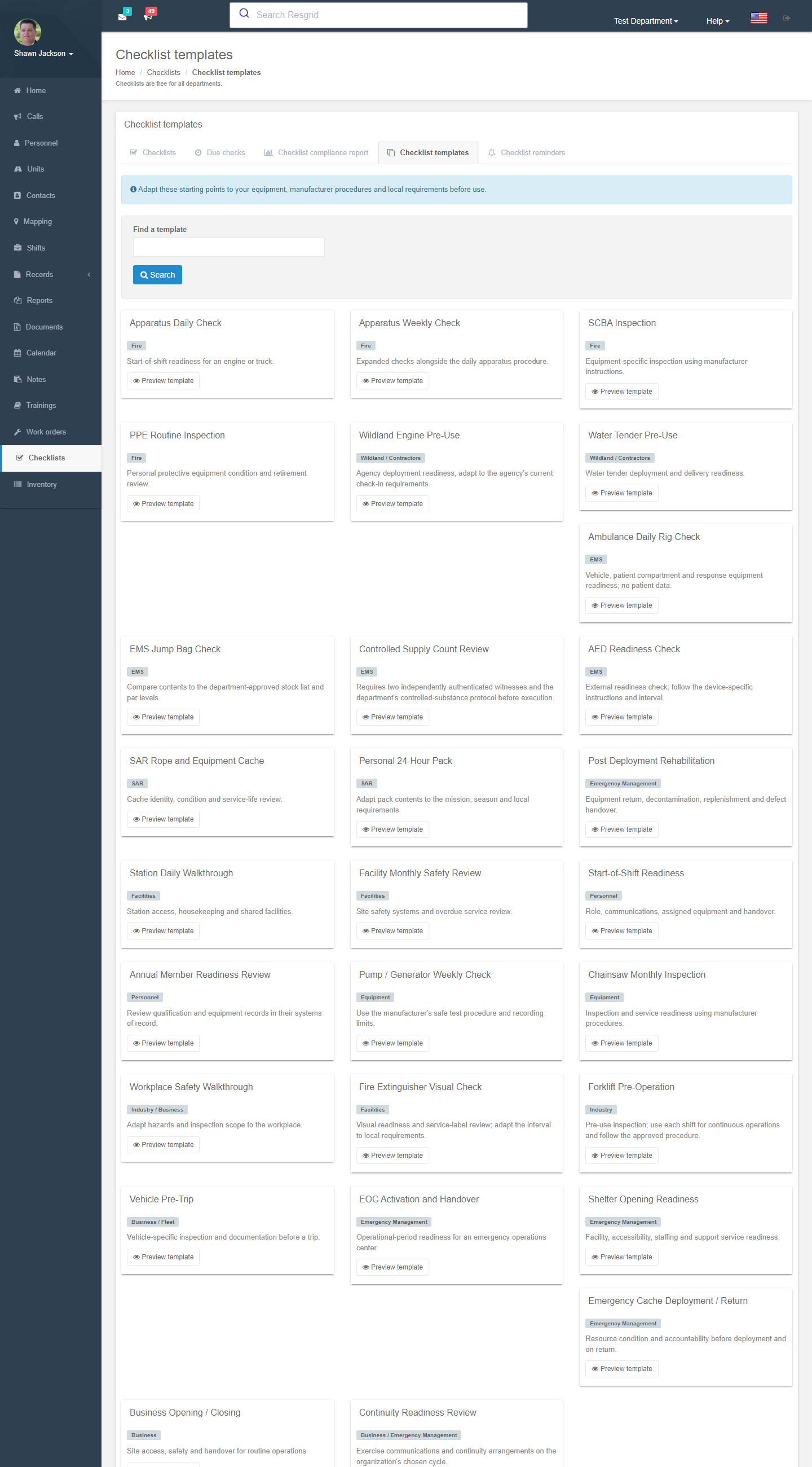
| Checklist templates | Ready-made starting points (unit checks, SCBA, PPE, station, vehicle, safety audit …) you can copy and adapt. |
| Checklist reminders | Department-wide reminder and escalation rules. |
If the Checklists item is missing from the left menu, an administrator has turned the module off under Department Settings → Module Settings, or the Checklists.System feature flag is not enabled for your department (self-hosted installs).
Key concepts
- Definition — the checklist itself: sections, items, answer types, scoring rules. Definitions are versioned. A draft can be edited freely; publishing creates an immutable version that runs are recorded against. Publishing a new draft later creates version 2, 3, … Existing runs always keep the version they were completed on.
- Target — what a run is carried out against: the whole Department, a Unit, a Group / station, a Person, or a serialized piece of equipment from Inventory. The target type is fixed when you create the definition.
- Run — one completed (or in-progress) instance of a checklist against a target, with answers, notes, photos, signatures and an optional witness.
- Schedule — a recurrence rule (each shift, daily, weekly, monthly, quarterly, six-monthly, annually) that generates occurrences with a completion window and an assignee.
- Occurrence / check — one scheduled instance that is Scheduled, In progress, Completed, Missed, Excused or Cancelled.
Building a checklist
Start from a template
Checklists → Checklist templates lists the built-in library. Use Find a template to filter, Preview template to read every item, then Use this template to copy it into a new draft you own. Templates are generic — adapt them to your equipment, manufacturer procedures and local requirements before publishing.
Or start from scratch
Checklists → New checklist opens the editor.
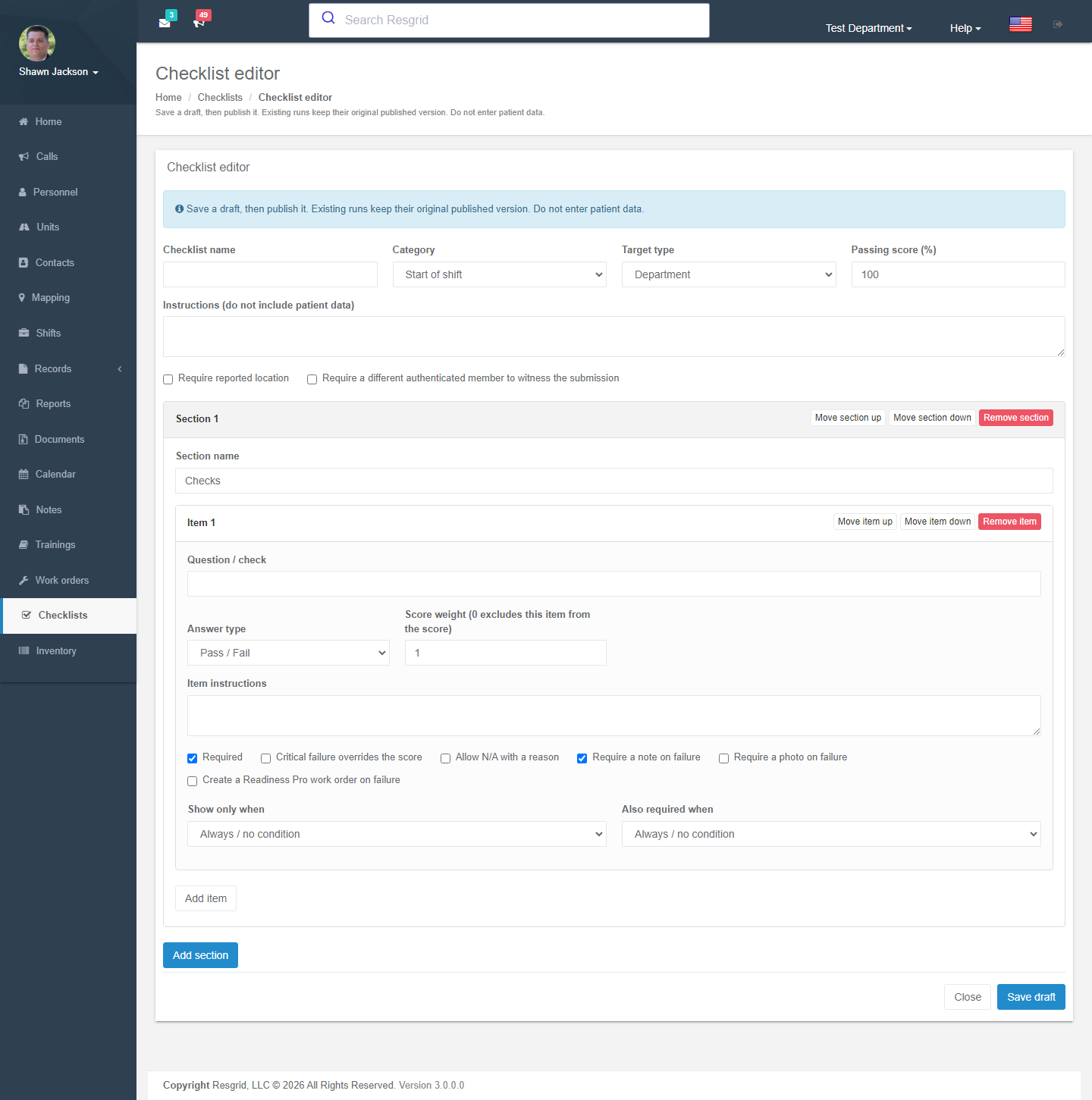
Checklist settings
| Field | What to enter |
|---|---|
| Checklist name | Shown on the due list and in reports — make it recognisable at a glance (Engine 1 Daily Check, SCBA Weekly). |
| Instructions | Shown at the top of every run. Never include patient data. |
| Category | Start of shift, Unit check, Personal gear, Annual review, Facility, Safety audit, Equipment check or Other. Used for filtering and reporting. |
| Target type | Department, Unit, Group / station, Personnel or Serialized equipment. Cannot be changed after the first publish. |
| Passing score (%) | The threshold a run must reach to be Passed. Leave blank if you only care about individual item results. |
| Require reported location | Forces the person running the check to capture GPS coordinates (or enter them manually). Useful for remote sites and mobile crews. |
| Require a different authenticated member to witness | A second logged-in member must independently verify the submitted answers and evidence before the run is complete. Use for controlled substances, SCBA and anything with regulatory weight. |
| Create a Readiness Pro work order on failure | (Readiness Pro) Automatically raises a work order when the run fails, with a chosen priority. Can also place the unit out of service or place the equipment out for repair. |
Sections and items
Group items into sections (Cab, Pump panel, Compartment 1 …). For every item you choose:
| Option | Meaning |
|---|---|
| Answer type | Pass / Fail, Yes / No, Checkbox, Numeric reading, Quantity, Free text, Select list, Date, Photo or Signature. |
| Passing answer / range / choice | What counts as a pass for that item (e.g. tyre pressure between 95 and 110 psi; select list must equal Full). |
| Critical failure overrides the score | If this item fails the whole run fails regardless of score. Use for brakes, SCBA low-air alarm, AED pads etc. |
| Allow N/A with a reason | Lets the crew skip the item (a reason is required). |
| Require a note / photo on failure | Forces evidence when something is wrong. |
| Score weight | Relative weight in the percentage score. 0 excludes the item from the score. |
| Show only when / Also required when | Simple conditional logic: show or require this item only when an earlier item has a given answer (e.g. show Describe damage only when Body damage? is Yes). |
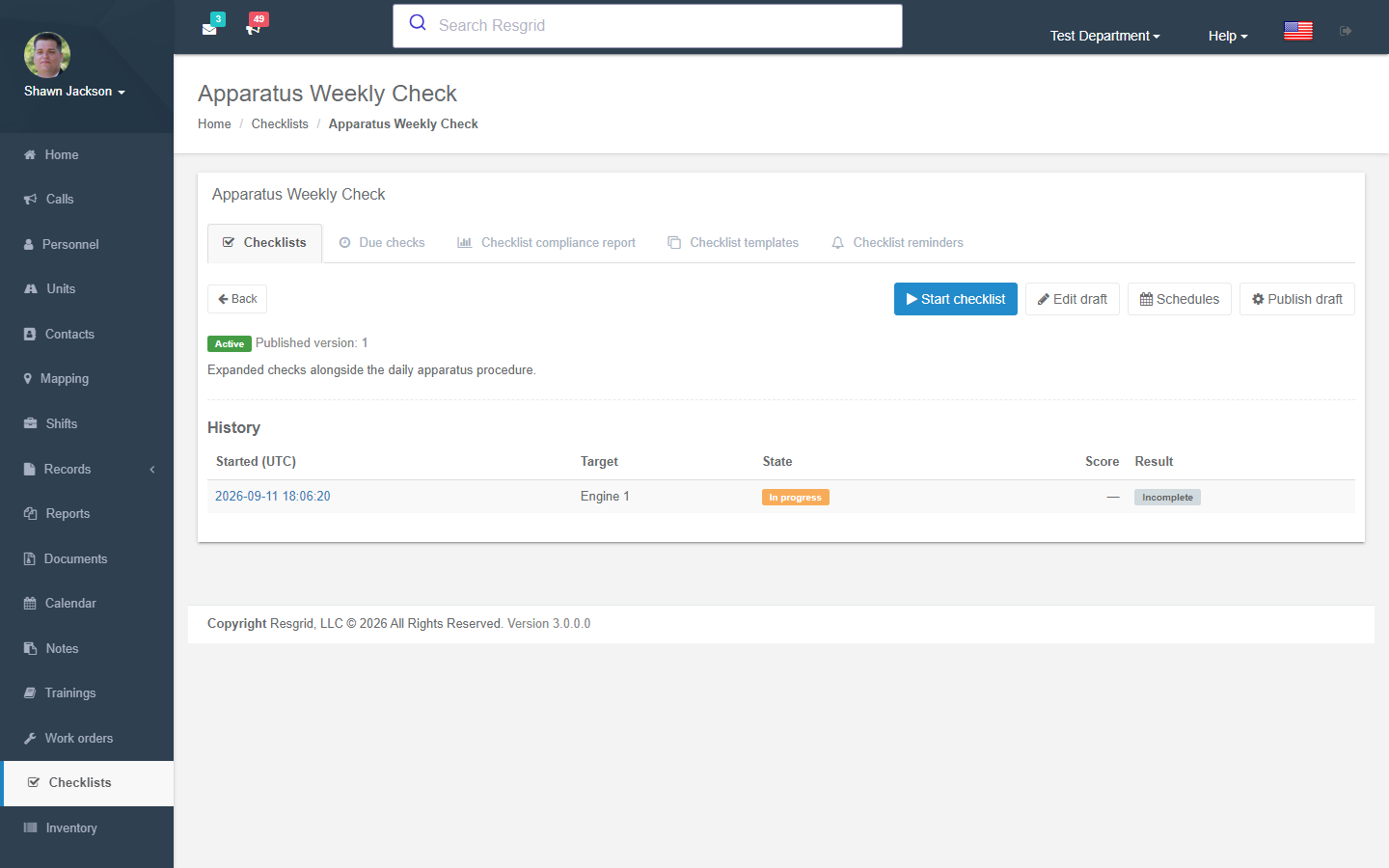
Save as draft as often as you like. When it is ready, open the checklist and choose Publish draft. Publishing is what makes the checklist schedulable and runnable.
Editing and retiring
Open any checklist from the list to see its published version, its draft (if one exists), history of runs and its schedules.
- Edit draft changes the draft only; the published version keeps running until you publish again.
- Retire stops new runs and cancels future scheduled checks. History is kept.
- Delete draft discards unpublished changes.
Running a checklist
Open the checklist and press Start checklist, choose the target (which unit, station, person or asset), and work through the items.
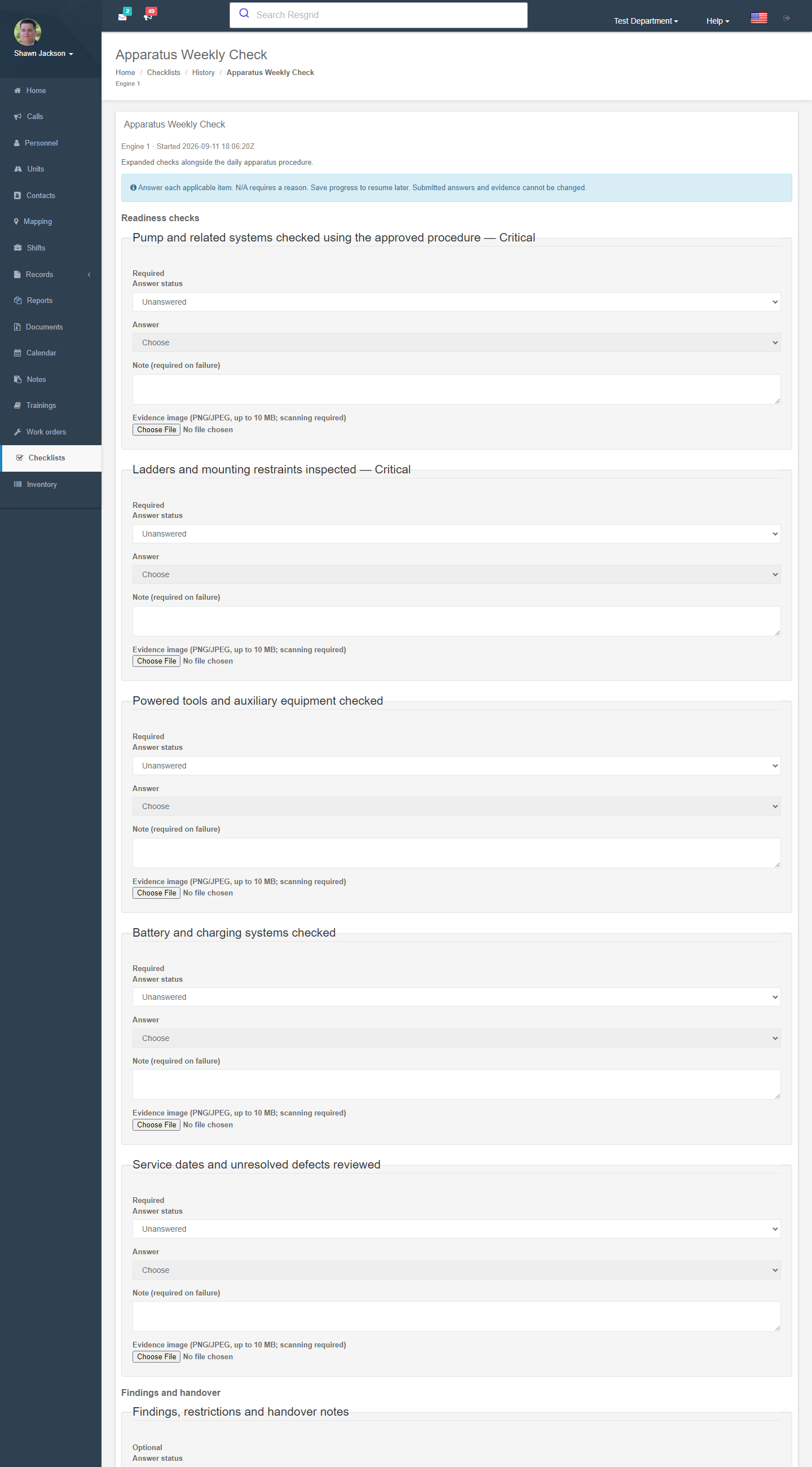
- Answer every applicable item. N/A requires a reason.
- Save progress to come back later; Submit checklist locks the answers. Submitted answers and evidence cannot be changed — corrections are made with a new run.
- Photos (PNG/JPEG up to 10 MB) are virus-scanned before they are accepted.
- Signatures can be drawn or uploaded.
- If the definition requires a witness, the run moves to Awaiting witness. Share the run's page link with the second member; they sign in, review, and press Attest and complete.
Crews normally run checks from the Unit or Responder mobile apps; the web page is the same run engine and can be used from a station computer or tablet.
Results
The run detail page shows every item, answer, note and evidence file plus author, submitted time, witness and reported location. Export JSON and Print are available. Runs that fail show which items failed and whether a critical item overrode the score.
Scheduling
From a published checklist choose Schedules → New schedule.
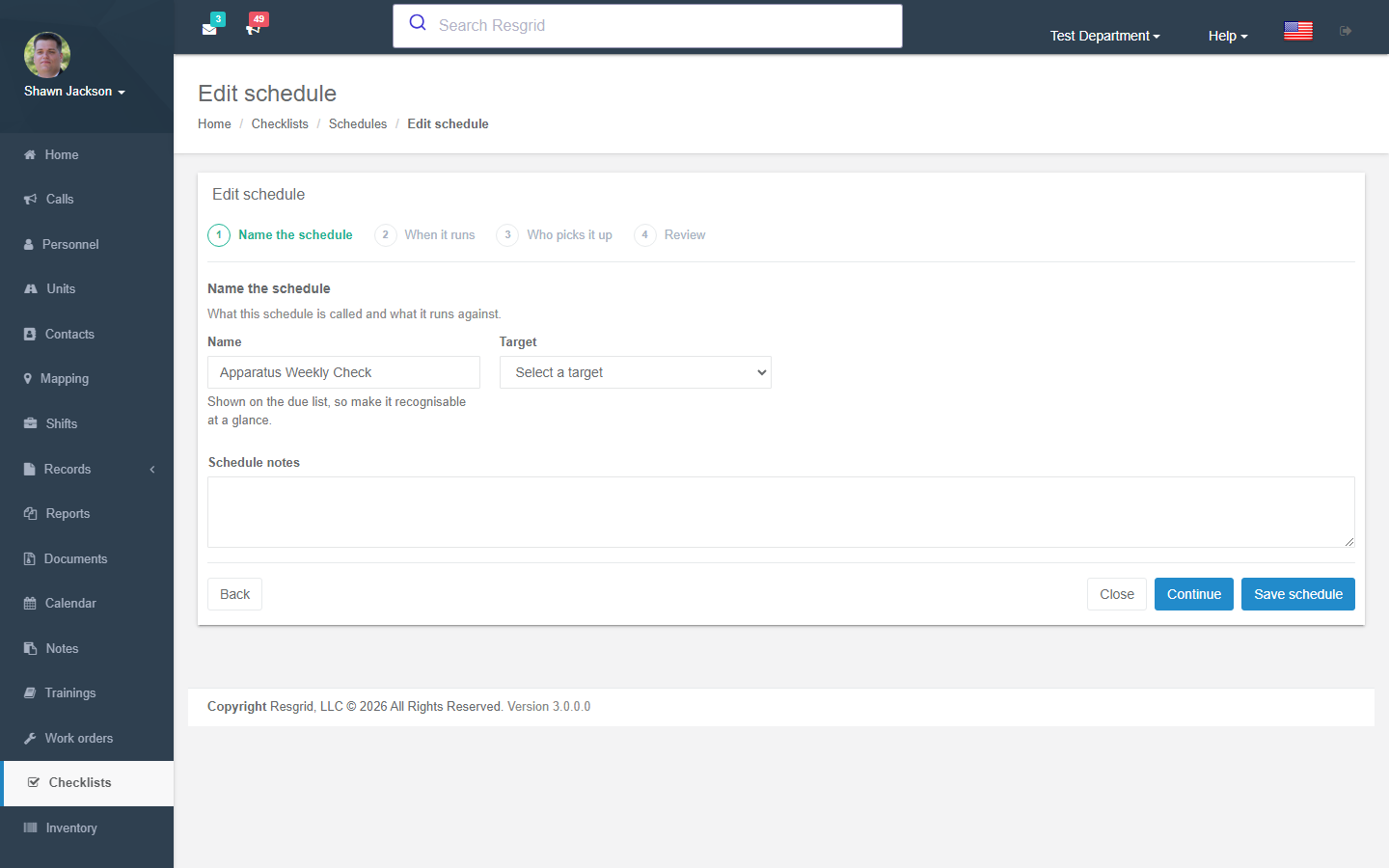
| Setting | Notes |
|---|---|
| Frequency | Each shift, Daily, Weekly, Monthly, Quarterly, Every six months, Annually. |
| Time zone | The zone the local times are read in (defaults to the department time zone). |
| Local times | Up to eight HH:mm times per day, comma separated. A skipped clock time (DST) moves forward; a repeated time occurs once. |
| Days for weekly checks | Which weekdays a weekly check opens. |
| Day of month / Starting month | For monthly or rarer checks. Short months use their last day; the starting month anchors quarterly, six-monthly and annual checks. |
| Workshift for checks each shift | For Each shift checks, uses the recorded start of a Workshift. Otherwise the local times apply daily. |
| Completion window (minutes) | How long the crew has once a check opens. After the window closes the check counts as Missed. |
| Assigned to | Automatic routing sends the check to whoever holds the target (the unit's crew, the station's members, the person). Or pick a specific Person, Personnel role, Group or station or Unit crew. |
| Start / End date, Paused, Enabled | Control the life of the schedule. Pausing cancels unstarted checks. |
Saving a schedule pins the current published version; changing the schedule replaces future unstarted checks.
Due checks
Checklists → Due checks lists the next seven days plus anything unfinished. Each row shows the target, who it is assigned to, when it is scheduled and when the window ends. Open check starts the run; Excuse check records a reason and marks it Excused (it stays on the record and is excluded from the compliance rate).
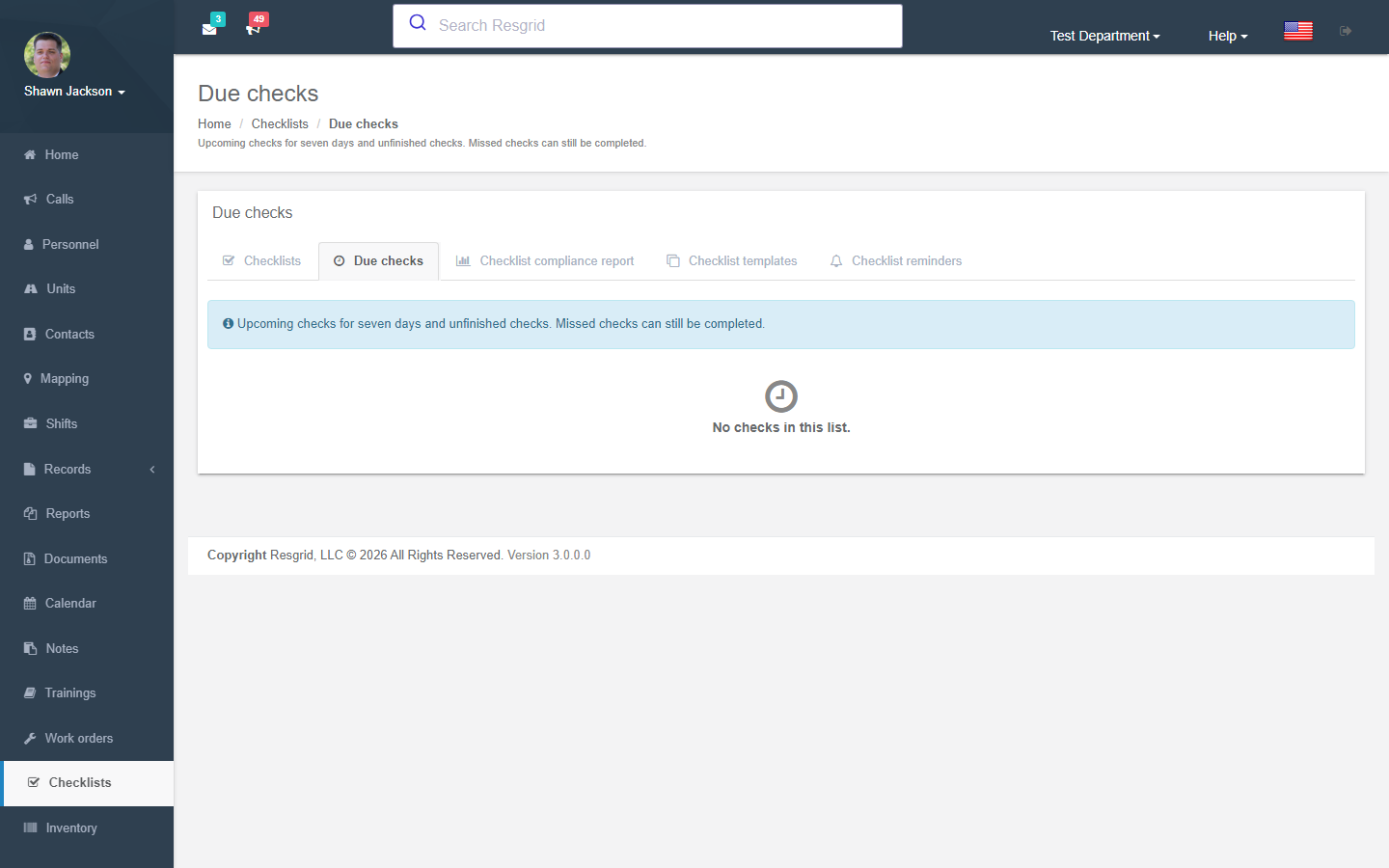
Scheduled checks also appear on the department Calendar when Readiness checks is ticked in the calendar filter.
Reminders and escalation
Checklists → Checklist reminders (administrators).
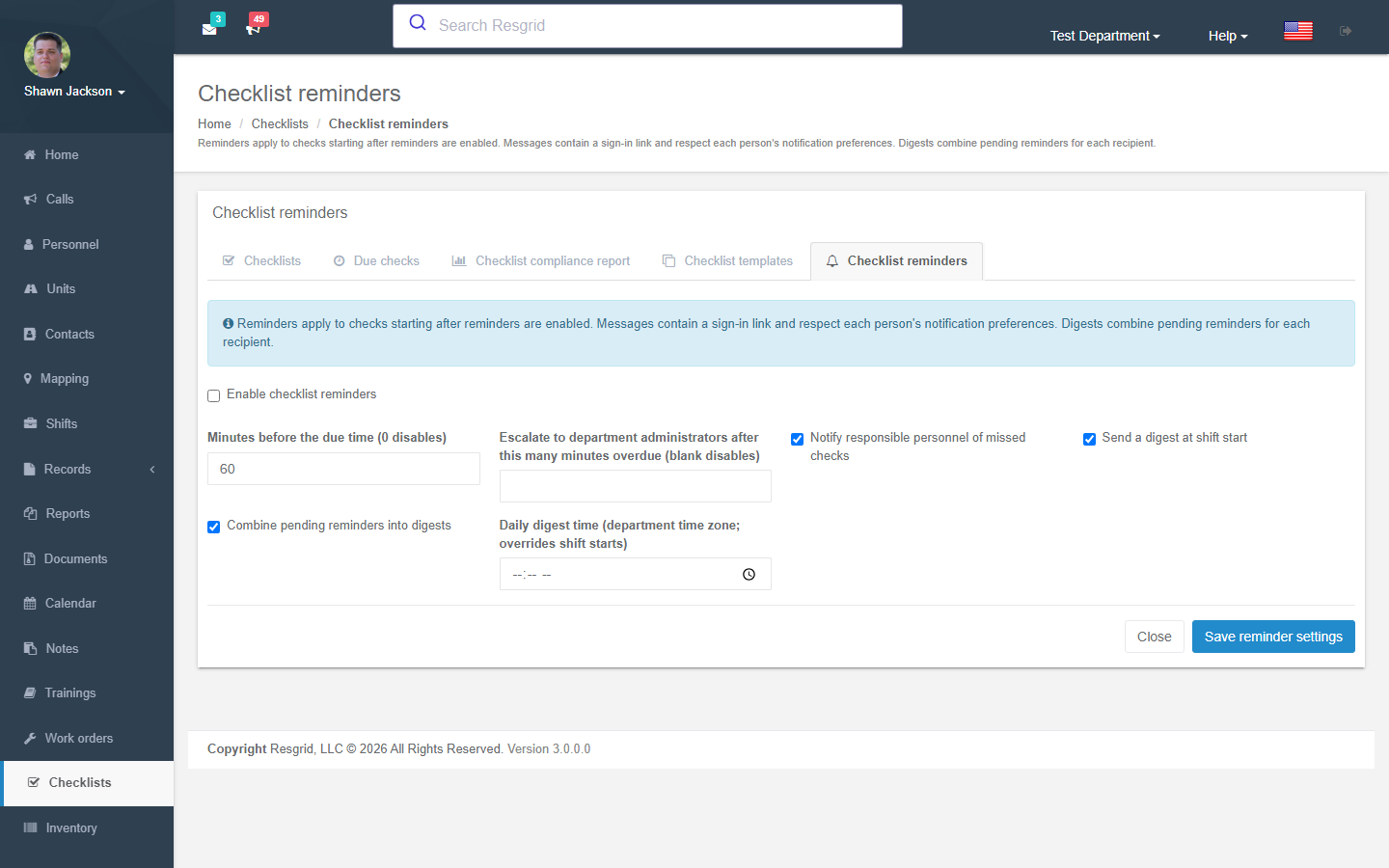
| Setting | Effect |
|---|---|
| Enable checklist reminders | Master switch. Reminders apply to checks that start after this is turned on. |
| Minutes before the due time | Send a reminder this many minutes before a check opens (0 disables). |
| Notify responsible personnel of missed checks | A message when the window closes without completion. |
| Combine pending reminders into digests | One message per person instead of one per check. |
| Send a digest at shift start / Daily digest time | When digests go out. |
| Escalate to department administrators after N minutes overdue | Blank disables escalation. |
Messages contain a sign-in link and respect each person's notification preferences (push, SMS, email). Checklist content is never included in the message.
Compliance report and readiness packet
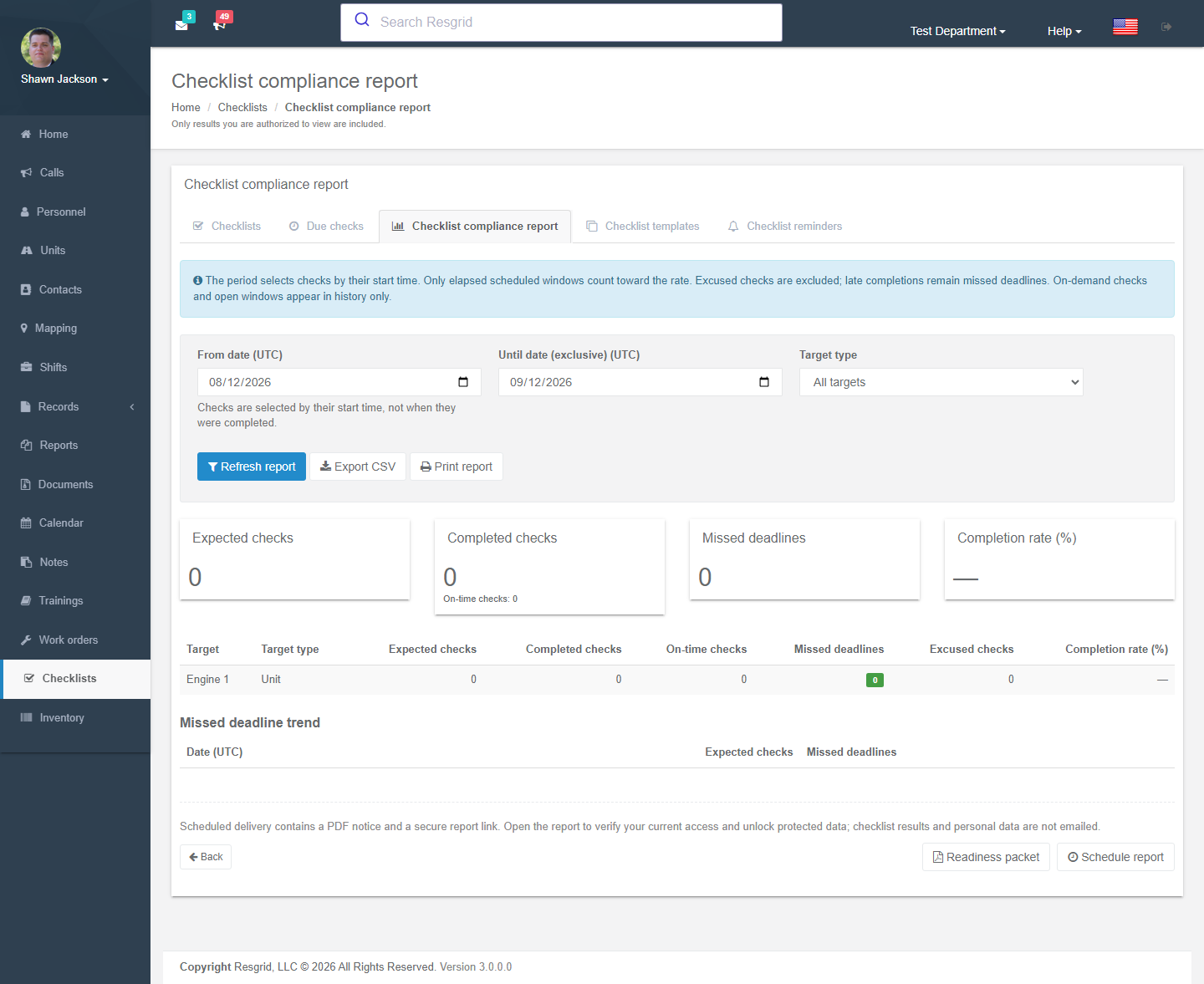
Checklist compliance report counts expected, completed, on-time, missed and excused checks in a period (up to 93 days) and charts the missed-deadline trend. Only elapsed scheduled windows count toward the rate; on-demand runs appear in history only. Filter by target, export CSV, print, or schedule the report to be emailed (protected data is never emailed — the recipient gets a secure link).
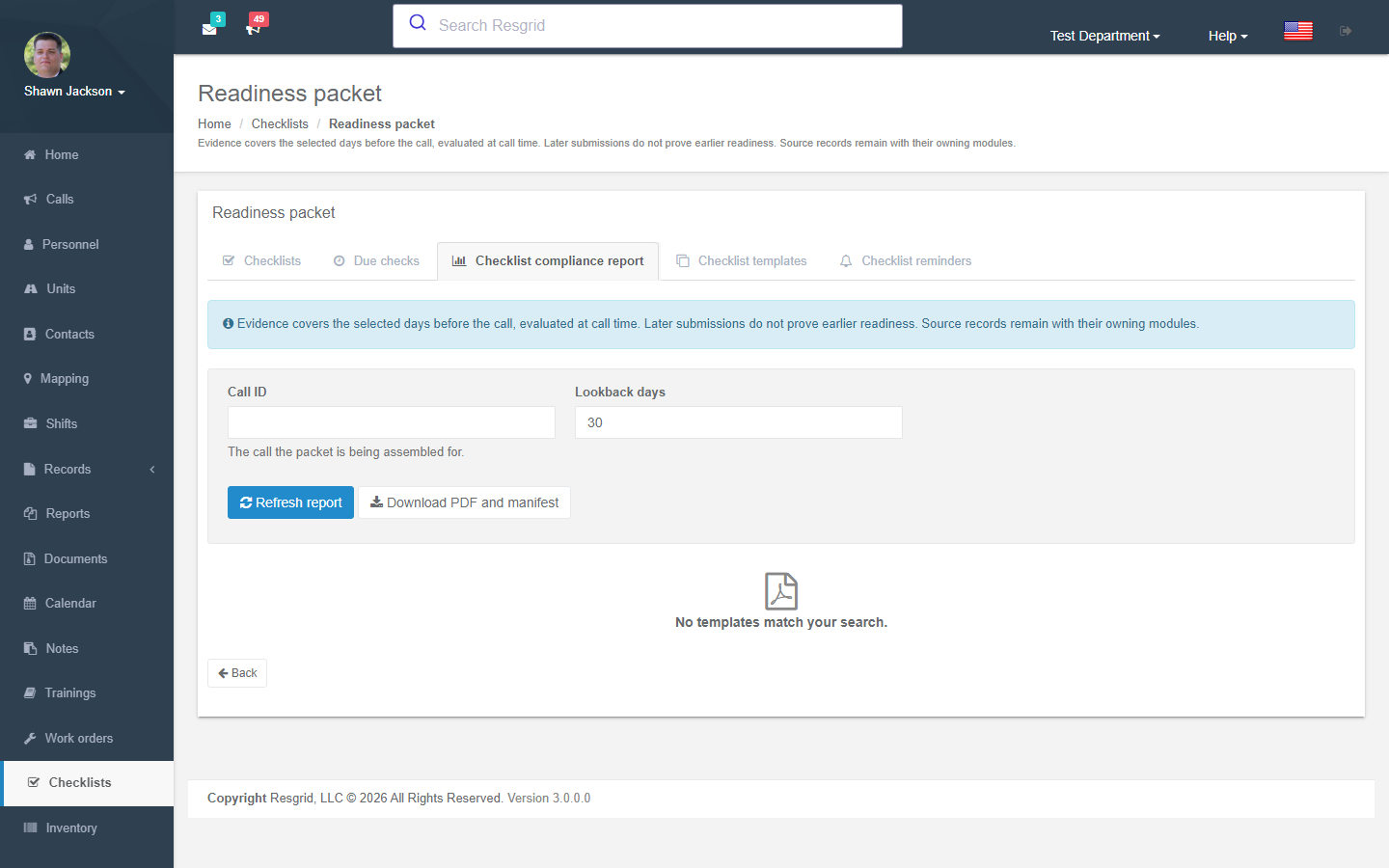
The Readiness packet assembles evidence of readiness at the time of a call: dispatched units, checklist results from the 30 days before the call, equipment issued at call time and (with Readiness Pro) work-order state. It downloads as a PDF with a manifest. Use it for after-action reviews, insurance and legal requests.
Permissions
Configure under Department → Security & Permissions:
| Permission | Default | Grants |
|---|---|---|
| Manage checklists | Department admins | Create, edit, publish, retire definitions; manage schedules; excuse checks; edit reminders. |
| View checklist results | Department admins | View runs completed by other members. Everyone can always see their own runs. |
Running a check requires being assigned (automatic routing or explicit assignment) — a member cannot run a check assigned to someone else.
Setup examples
| Department type | Suggested checklists |
|---|---|
| Volunteer / career fire | Apparatus daily per engine/ladder (Unit target, each shift or daily, critical items for brakes/lights/pump), SCBA weekly (Serialized equipment, witness required), Station facility weekly (Group target). |
| EMS | Ambulance start-of-shift (Unit, each shift, drug box seals as critical, narcotics count with witness), Monitor/defib daily (Serialized equipment), Controlled substance count (witness + photo). |
| Search & rescue | Personal 24-hour pack (Personnel target, monthly, self-run), Team cache inventory (Group, quarterly), Vehicle/ATV pre-trip (Unit). |
| Emergency management / EOC | EOC readiness (Department, monthly: generators, comms, supplies), Shelter site inspection (Group per site, annual). |
| Private security / facilities | Patrol vehicle start-of-shift (Unit, each shift with reported location required), Post orders check (Group per site), Fire extinguisher monthly (Serialized equipment). |
| Industrial / plant ERT | Rescue equipment weekly (Serialized equipment, critical items), Safety audit (Group, monthly, photo on failure), with Create a work order on failure enabled so defects flow straight to maintenance. |
Tips
- Keep the daily check short; put rare items on a weekly or monthly schedule so the daily one takes two minutes.
- Use Critical sparingly — only for items that genuinely take the unit out of service.
- Turn on Require a photo on failure for anything you will need to show an auditor or a mechanic.
- Publish, then schedule. Schedules cannot be created against a draft.
- Reminders only apply to checks generated after you turn them on.
Technical reference
| Item | Value |
|---|---|
| Controller | ChecklistsController (partials: ChecklistsSchedulingController, ChecklistRemindersController, ChecklistReportingController) under Areas/User |
| Routes | /User/Checklists/{Index,Templates,Template,New,Edit,Detail,Run,CompletionDetail,Evidence,Schedules,EditSchedule,Due,Occurrence,Reminders,Compliance,ReadinessPacket} |
| Feature flag | Checklists.System (seeded off by migration M0189; enable per department or globally) |
| Module switch | DepartmentModuleSettings.ChecklistsDisabled |
| Permissions | PermissionTypes.ManageChecklists (112), PermissionTypes.ViewChecklistResults (113) |
| Services | IChecklistsService, IReadinessAccessService.CanUseChecklistsAsync |
| Workflow events | ChecklistCompleted, ChecklistFailed, ChecklistMissed, ChecklistScheduleChanged, ChecklistOccurrenceSkipped — see Workflows |
| Reports | /User/Reports/ChecklistComplianceReport (also schedulable from Profile → Reporting) |
| API | api/v4/Checklists/* used by the Unit and Responder apps |
| Protected data | When the department is enrolled in Advanced Data Protection, checklist answers and evidence are stored encrypted and the page asks you to Verify and open before displaying them. |