Call Check-In Timers
The Call Check-In Timer system is an accountability and safety feature that tracks whether personnel, units, or operational roles have checked in within required time intervals while a call (incident) is active. Timers visually escalate through Green / Warning / Critical states, helping incident commanders maintain situational awareness and comply with safety protocols such as NFPA 1561 PAR checks.
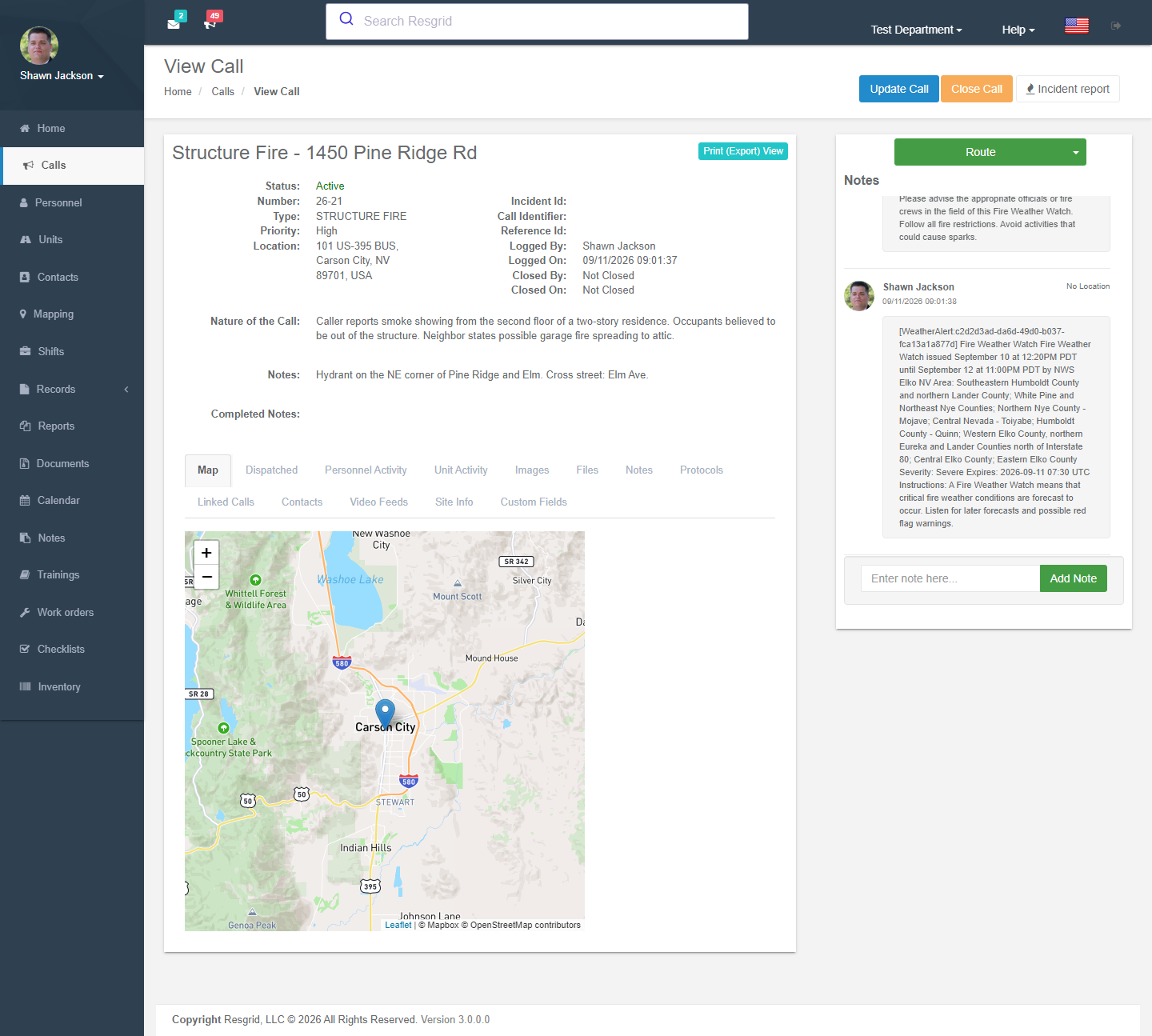
Navigation: Dispatch → View Call → Check-In Timers panel
Overview
When check-in timers are enabled on a call, a Check-In Timers panel appears on the View Call page. The panel shows a table with:
- Target — the timer type (e.g., PAR, Rehab, IC)
- Time Remaining — a live countdown updated every second in the browser
- Status — a color-coded badge (Green, Warning, or Critical)
- Check In — a button to record a check-in and reset the timer
A collapsible Check-In History section below the timers panel shows all past check-in records for the call, including timestamp, who performed it, check-in type, GPS location, and any notes.
Timer Target Types
Timers can be configured for seven target types:
| Target Type | Description |
|---|---|
| Personnel | General check-in for all dispatched personnel |
| UnitType | Check-in scoped to a specific unit type (e.g., Engine, Ladder) |
| IC | Incident Commander accountability check |
| PAR | Personnel Accountability Report |
| HazmatExposure | Hazmat exposure time tracking |
| SectorRotation | Sector or division rotation timer |
| Rehab | Rehabilitation rotation timer |
Timer Status and Visual Indicators
Each timer transitions through three states based on how much time has elapsed since the last check-in (or the call's start time if no check-in has been recorded):
| Status | Condition |
|---|---|
| Green | Elapsed time is less than the configured duration |
| Warning | Elapsed time has exceeded the duration but is within the warning threshold |
| Critical | Elapsed time has exceeded both the duration and the warning threshold |
The browser updates countdown timers every second for a responsive live display. Status badges recalculate in real-time as the countdown progresses.
Configuration
Enabling Check-In Timers for a Call
Check-in timers are enabled per-call using the Enable Check-In Timers checkbox on the New Call and Update Call forms. If the department has Auto-Enable Check-In Timers for New Calls turned on in Dispatch Settings, this checkbox defaults to checked for every new call. Dispatchers can toggle it manually at call creation or any time the call is updated.
Call Quick Templates can also store a check-in timer preference. When a template is applied to a new call, the template's setting pre-fills the checkbox. See Templates for details.
Default Timer Configurations
Authorization: Department Admin — Dispatch Settings
Department admins configure default timers that apply to all calls (unless overridden). Each default timer config specifies:
| Field | Description |
|---|---|
| Timer Target Type | Which target type this timer applies to (see table above) |
| Unit Type | Optional; restricts the timer to a specific unit type (only used when target type is UnitType) |
| Duration (minutes) | How often a check-in is required (e.g., 30 minutes) |
| Warning Threshold (minutes) | Additional minutes after the duration before the timer goes Critical |
| Enabled | Whether this config is active |
| Active For States | Optional; comma-separated list of personnel/unit state IDs — if set, the timer only activates when a dispatched entity is in one of these states |
Admins can add and delete default timer configs from the Dispatch Settings section of Department Settings.
Call-Type and Priority Overrides
Overrides replace default configs for specific call types and/or priorities. An override has all the same fields as a default config plus:
| Field | Description |
|---|---|
| Call Type | Optional; match against the call's type |
| Call Priority | Optional; match against the call's priority |
When resolving timers for a call, overrides are scored for specificity:
| Score | Condition |
|---|---|
| 3 | Both Call Type and Call Priority match |
| 2 | Only Call Type matches |
| 1 | Only Call Priority matches |
| 0 | Neither specified (catch-all override) |
Higher-scoring overrides take precedence. An override replaces the default config for the same target type and unit type combination.
Active-For-States Filtering
The Active For States setting restricts when a timer is active based on the current state of dispatched entities:
- Personnel-based timers (Personnel, IC, PAR, HazmatExposure, SectorRotation, Rehab): The timer activates if any dispatched person's current action type matches one of the allowed state IDs.
- UnitType timers: The timer activates if any dispatched unit of the specified type is currently in one of the allowed states.
- If Active For States is empty, the timer is always active regardless of entity states.
Performing a Check-In
When a user clicks the Check In button on an active timer:
- A modal dialog opens with an optional Note field.
- The browser requests GPS coordinates via the Geolocation API (if available and permitted).
- The check-in is submitted with the call ID, timer type, optional unit ID, optional GPS coordinates, and optional note.
- The server validates the call belongs to the department, is currently active, and has timers enabled.
- A check-in record is created with a UTC timestamp.
- The timer resets — the countdown restarts from the configured duration.
- The timer statuses and check-in history panels refresh automatically.
Check-ins can also be recorded via the API from mobile apps or other integrations.
Call Export
When a call with check-in timers enabled is exported (PDF or HTML), the export includes:
- Timer Configuration — Lists the resolved timers for the call, including type, duration, warning threshold, and whether each timer came from a default config or an override.
- Check-In Log — A full log of all check-in records with timestamps, who performed them, check-in type, GPS coordinates, and notes.
This export provides a complete post-incident record for review and compliance documentation.
API Reference
The Check-In Timer API is available at api/v4/CheckInTimers/. All endpoints require authentication.
| Endpoint | Method | Authorization | Description |
|---|---|---|---|
GetTimerConfigs | GET | Department_View | List all default timer configs for the department |
SaveTimerConfig | POST | Department_Update | Create or update a default timer config |
DeleteTimerConfig | DELETE | Department_Update | Delete a default timer config |
GetTimerOverrides | GET | Department_View | List all call-type/priority overrides |
SaveTimerOverride | POST | Department_Update | Create or update an override |
DeleteTimerOverride | DELETE | Department_Update | Delete an override |
GetTimersForCall | GET | Call_View | Get the resolved set of timers for a specific call |
GetTimerStatuses | GET | Call_View | Get real-time timer statuses with color-coded state |
PerformCheckIn | POST | Call_Update | Record a check-in with optional GPS coordinates |
GetCheckInHistory | GET | Call_View | Get all check-in records for a call |
ToggleCallTimers | PUT | Call_Update | Enable or disable check-in timers on a call |
Real-Time Notifications
The system broadcasts SignalR events when check-ins occur or timer configurations change, allowing connected clients (browser tabs, mobile apps) to receive live updates without polling.
Audit Logging
All check-in timer configuration changes are recorded in the department's audit log, providing a full trail of who added, modified, or deleted timer configs and overrides.
Typical Workflow
- A department admin configures default timers in Department Settings → Dispatch Settings (e.g., PAR every 20 minutes with a 5-minute warning, Rehab every 45 minutes).
- Optionally, the admin adds overrides for specific call types or priorities (e.g., for High Priority calls, PAR every 10 minutes).
- Optionally, the admin enables Auto-Enable Check-In Timers for New Calls so all new calls have timers on by default.
- A dispatcher creates a new call — timers are enabled automatically or toggled manually.
- The incident commander and dispatchers view the call and see timers counting down in real-time.
- As timers approach expiration, they transition Green → Warning → Critical.
- Personnel perform check-ins via the web interface or mobile API, resetting the timer for that type.
- All check-ins are logged with timestamps, GPS coordinates, and optional notes.
- After the call, the Call Export includes the full timer configuration and check-in log for post-incident review.
Setup examples
| Department type | How to set it up |
|---|---|
| Fire | PAR every 20 minutes on Structure fire types; Rehab timer 45 minutes; IC timer 15 minutes. |
| Hazmat / industrial | Hazmat exposure timer per unit type with warning at 20 of 30 minutes. |
| SAR | Sector rotation timers of 2 hours for field teams; check-ins with GPS from the Unit app. |
Technical reference
Interactions with Other Modules
| Module | Interaction |
|---|---|
| Dispatch & Calls | Check-in timers are enabled on calls at creation or update; timer statuses display on the View Call page |
| Templates | Call Quick Templates can pre-configure the check-in timers enabled state |
| Department Settings | Default timer configs and overrides are managed in Dispatch Settings |
| Units | UnitType timers track dispatched units by type |
| Personnel | Personnel-based timers track dispatched personnel action states |
| API | Full REST API for timer management and check-in recording |
| Reports / Export | Call Export includes timer configuration and full check-in log |