User Defined Fields
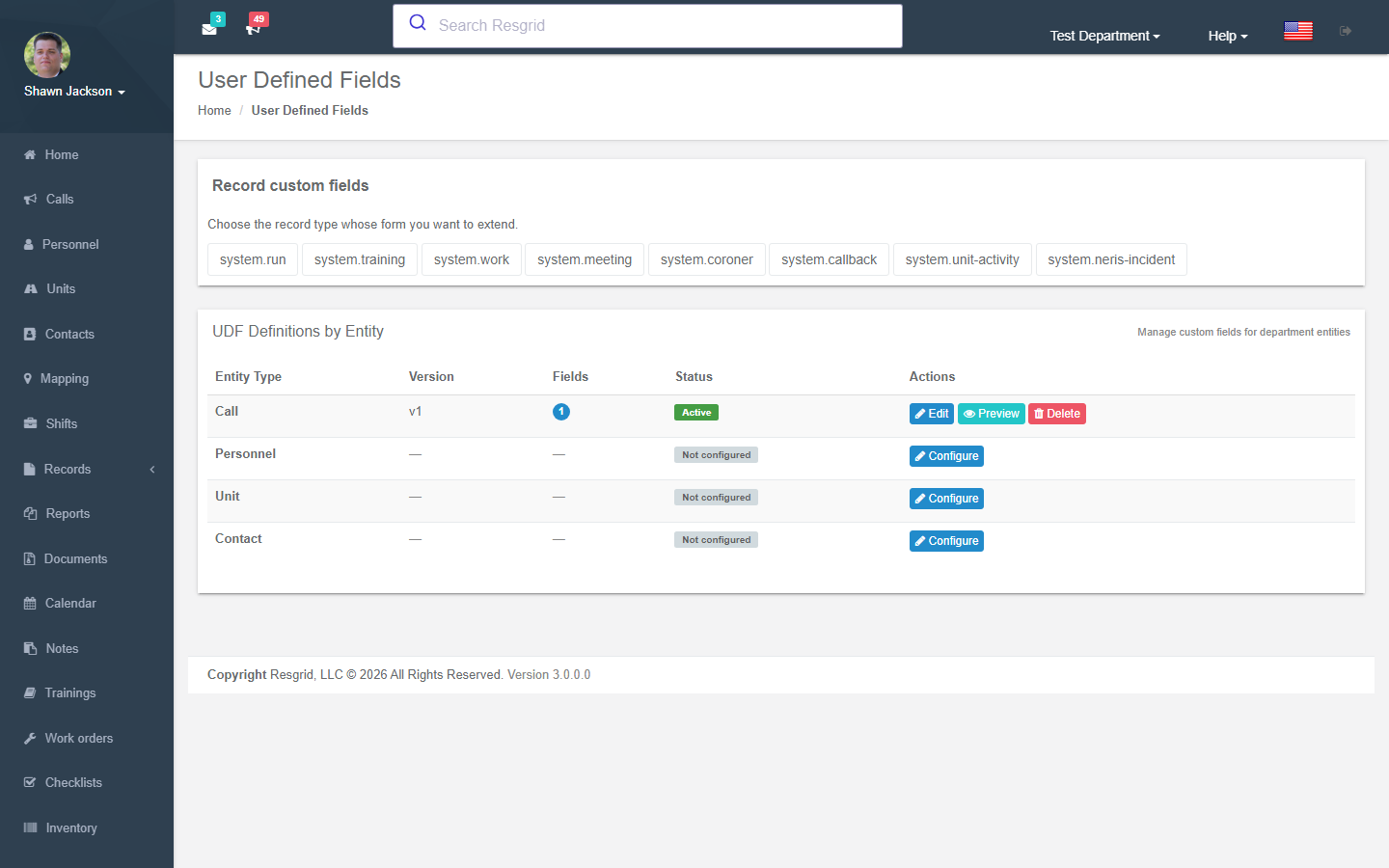
The User Defined Fields module allows departments to define, manage, and view custom data fields on Calls, Personnel, Units, and Contacts. UDF field definitions are configured by Department Admins via the UDF management page. Field values are captured in the standard create/edit forms for each entity type and are displayed on detail/view pages.
Authorization: UDF definition management requires Department Admin access. Viewing and editing field values on records follows the same permissions as the parent entity.
Navigation: Department Menu → User Defined Fields
Overview
UDF fields are defined once per entity type and automatically appear in the relevant create/edit/view forms throughout the web application. The system uses a versioned definition model — each time a department updates its field configuration, a new version of the definition is created. Existing records remain linked to the version that was active when they were saved, preserving historical data integrity.
Admin configures fields → Definition v1 created → Records save values against v1
Admin adds a field → Definition v2 created → New records use v2 → v1 records unchanged
UDF Management Page
Accessing the Management Page
Navigate to Department → User Defined Fields. Use the Entity Type selector to switch between:
- Calls — Custom fields on dispatch calls
- Personnel — Custom fields on personnel/member profiles
- Units — Custom fields on apparatus/unit records
- Contacts — Custom fields on external contact records
Current Definition
The management page displays the currently active definition version number and the list of configured fields. Each field row shows:
| Column | Description |
|---|---|
| Sort Order | The field's display position |
| Name | Internal field identifier |
| Label | Display label shown on forms |
| Data Type | The field input type |
| Group | Group/section name, if assigned |
| Required | Whether the field is mandatory |
| Enabled | Whether the field is currently visible on forms |
| Actions | Edit, Remove buttons |
Adding a Field
- Click Add Field.
- Set the Label, Name, Data Type, and any validation rules.
- Optionally configure the Group Name, Placeholder, Description (help text), sort order, and behavior flags.
- Click Save. A new definition version is created with the field added.
Editing a Field
- Click Edit next to the field.
- Update any settings.
- Click Save. A new definition version is created preserving all existing field values on historical records.
Removing a Field
Click Remove next to any field and confirm the prompt. A new definition version is created without that field. The field and its historical values remain in the database and continue to appear on records saved under previous versions.
Reordering Fields
Drag and drop fields in the list to change their display order. Click Save Order. A new definition version is created with the updated sort order.
Use the Is Enabled toggle on a field to temporarily hide it from forms without creating a new version. Use Remove only for permanent removal.
UDF Fields in Call Records
New Call Form
When an active UDF definition exists for the Call entity type, the UDF field section appears below the standard call fields on the New Call form. Fields are organized into groups (if configured) displayed as labeled sections.
- Required fields are marked with an asterisk.
- Dropdowns and multi-select fields display the configured options.
- Read-only fields are displayed as non-editable.
- Help text (Description) appears as a tooltip icon next to the field label.
Edit Call Form
The same UDF field section appears on the Update Call form. The form loads values saved under the call record's definition version. If the active definition has changed since the call was created, new fields from the latest version are displayed empty (no default is applied retroactively).
Call Detail View
The call detail/view page displays all UDF field values in a read-only section below the standard call details. Fields with Is Visible on Reports = Off are excluded from this view.
UDF Fields in Personnel Records
Personnel Profile (Edit)
When an active UDF definition exists for the Personnel entity type, the UDF section appears on the personnel profile edit page. Admins and the personnel member themselves (subject to permissions) can populate these fields. Fields are grouped by Group Name into labeled sections.
Personnel Profile (View)
The personnel read-only profile page displays all UDF field values in a dedicated section. Fields with Is Visible on Reports = Off are excluded from the view.
UDF Fields in Unit Records
Edit Unit Form
When an active UDF definition exists for the Unit entity type, the UDF section appears on the unit edit page. Unit admins can populate custom fields such as "Service Date", "Equipment Serial Number", or "Vehicle Class".
Unit Detail View
The unit detail page renders UDF field values read-only below the standard unit fields.
UDF Fields in Contact Records
New / Edit Contact Form
When an active UDF definition exists for the Contact entity type, the UDF section appears on the contact create and edit forms. This enables departments to capture compliance information, relationship metadata, or sector-specific data alongside the standard contact fields.
Contact Detail View
The contact detail page renders UDF field values read-only below the standard contact information.
Field Rendering Details
Grouping Sections
Fields that share a Group Name are rendered inside a labeled fieldset or collapsible panel. Example:
┌─────────────────────────────────────────┐
│ Hazmat Details                          │
│  Chemical Class: [dropdown        ▼]    │
│  UN Number:      [____________]         │
│  Quantity (L):   [____________]         │
└─────────────────────────────────────────┘
┌─────────────────────────────────────────┐
│ Response Details                        │
│  Entry Team:     [____________]         │
│  Decon Required: [✓]                    │
└─────────────────────────────────────────┘
Fields without a Group Name appear in a default section above any named groups.
Client-Side Validation
The web forms include HTML5 and data-attribute validation that runs in the browser before form submission:
- Required fields display an error if left empty.
- Text fields enforce min/max length.
- Number and Decimal fields enforce min/max value via
min/maxattributes. - Regex rules emit a
patternattribute with the matching error message. - Email, Phone, and URL fields use format-specific validation patterns.
Server-side validation is always applied independently of client-side validation.
Read-Only Display
Fields marked Is Read-Only render as static text (not an input control) on create and edit forms. They are displayed identically to editable fields on view/detail pages.
Reports and Exports
UDF fields are automatically included as additional columns in call exports, personnel exports, unit exports, and contact exports. The columns are dynamically generated based on all definition versions, so historical records display the values that were captured under the definition version active at that time.
No configuration is required to enable UDF columns in exports — they appear by default as long as the field's Is Visible on Reports flag is enabled.
Audit Log
All UDF field value changes on records are written to the department audit log alongside the standard entity audit events. Navigate to Department → Audit Log and filter by UDF Field Value Saved to review a history of value changes, including the entity type, entity ID, and old/new values.
For definition configuration changes (adding/editing/removing fields), filter by the UDF Definition and UDF Field event types.
Related
- User Defined Fields Configuration — How to configure field definitions, data types, validation rules, and grouping
- User Defined Fields API — REST API reference for programmatic access to definitions, values, and mobile schema
- Forms — Visual form builder for extending the New Call creation workflow
- Workflows — Automations that can interact with UDF field values
Setup examples
| Department type | How to set it up |
|---|---|
| Fire | Calls: Box number, Mutual aid given/received, Water used (gal). Units: VIN, Pump capacity, Radio ID. Personnel: Pager number, Shirt size. |
| EMS | Calls: Determinant code, Transport destination; Personnel: Licence number. |
| SAR | Calls: Subject age, Point last seen, Mission number; Personnel: Pack weight limit. |
| Security | Calls: Client PO number, Site code; Units: Plate number. |
| Records | Extend locked record types (Run, NERIS) with department fields — never sent in standardized exports. |