Custom Maps
Custom Maps allow departments to upload their own map images — floor plans, venue layouts, campus schematics, satellite imagery, or tactical overlays — and overlay them on the standard Resgrid map. Polygon zones drawn on those images resolve to human-readable locations (e.g., "Building 1, Room 405a") that can be used as call locations, pre-plan attachments, and real-time personnel overlays.
Custom Maps are designed for:
- Fire departments — building pre-plans, high-rise floor plans, industrial facility schematics
- Law enforcement / security — venue layouts, campus maps, event perimeters, gate/checkpoint configurations
- EMS / SAR — wilderness sectors, staging areas, muster points, triage zones
- Emergency management — multi-agency event maps, evacuation zones, resource staging areas
Navigation: Mapping → Custom Maps
Overview
A Custom Map consists of three nested layers:
Custom Map (the image + geo-bounds)
  └── Floors / Levels (one image per floor or sub-level)
        └── Zones (named polygon regions drawn on the floor image)
When a caller or dispatcher selects a zone, Resgrid resolves it to its human-readable name (e.g., "Sector B, Grid 7" or "South Tower, 14th Floor, Server Room") and stores that as the call location.
Map Types
| Type | Use Case |
|---|---|
| Indoor | Building floor plans, arenas, hospitals |
| Satellite | Custom or classified satellite images overlaid on real-world coordinates |
| Schematic | Engineered drawings, utility diagrams |
| Event | Temporary maps for concerts, marathons, sporting events — auto-archived after the event date |
Managing Custom Maps
Viewing All Custom Maps
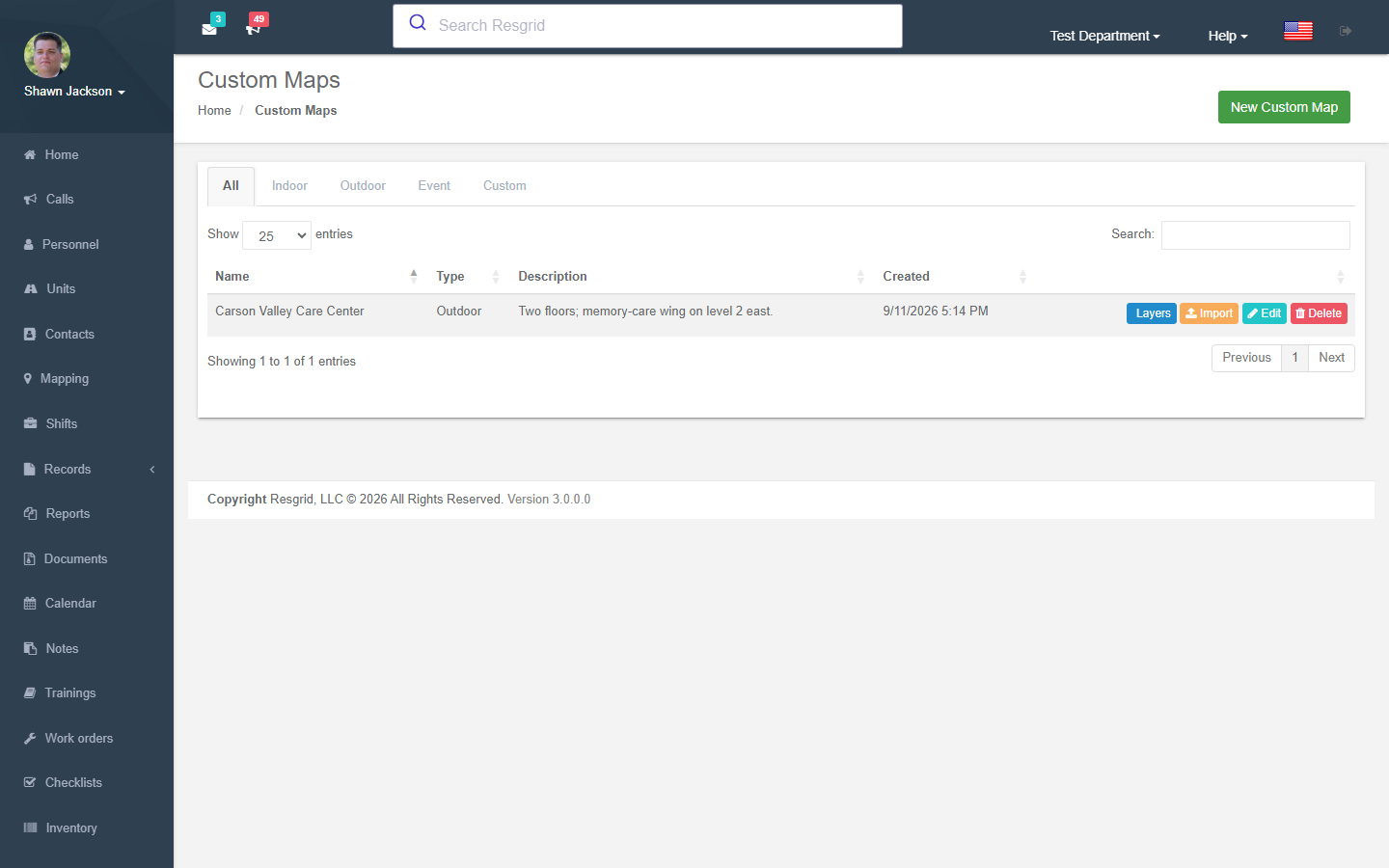
Navigate to Mapping → Custom Maps to see a table listing all maps for your department. Each row shows the map name, type, active status, and date created.
Creating a Map
Click New Custom Map to open the creation form.
| Field | Required | Description |
|---|---|---|
| Name | Yes | Display name (e.g., "Station 4 — Main Building") |
| Description | No | Additional detail about the map |
| Type | Yes | Indoor, Satellite, Schematic, or Event |
| Default Zoom | No | Initial zoom level when the map loads (1–22) |
| Min / Max Zoom | No | Zoom constraints for the map |
| Event Start / End | Event type only | Date range for automatic archival; these fields appear automatically when Type = Event is selected |
| Is Active | Yes | Toggle to show/hide the map across all views |
| Geo-Bounds | Yes | Draw a rectangle on the embedded Leaflet map (see below) |
Setting Geo-Bounds
The form includes a Leaflet map with the Leaflet-Geoman rectangle draw tool. To register where your map image sits in the real world:
- Pan and zoom the Leaflet map to the location your map covers.
- Click the rectangle icon in the Geoman toolbar.
- Click and drag to draw the bounding rectangle over the real-world footprint of your building or area.
- The four hidden form fields (
BoundsTopLeftLat,BoundsTopLeftLng,BoundsBottomRightLat,BoundsBottomRightLng) are populated automatically from the drawn rectangle.
This geo-projects your floor images onto real-world GPS coordinates so that zone names and call locations align with GPS data from mobile devices.
Floor plan images are uploaded per-floor (not at the map level). Large images are automatically sliced into a tile pyramid by the Resgrid tile server using S3-compatible storage. You upload one file per floor; the system handles tile generation in the background.
Editing a Map
Click the Edit button next to a map in the list. The form is identical to New Custom Map but pre-populated with the saved values. The existing geo-bounds are rendered as an editable rectangle on the Leaflet map — drag the rectangle handles to adjust the bounds, or delete and redraw it using the Geoman toolbar. Save when done.
Deleting a Map
Click the Delete button next to a map in the list. Deletion cascades immediately — the map, all of its floors, and all zones on those floors are permanently removed. Any calls that previously referenced a zone on this map retain the zone name as plain text but lose the live zone link.
The New, Edit, and Delete buttons are only visible to Department Admins. Users without admin access see the map list and the Floors button in read-only context.
Managing Floors
Every Custom Map has at least one floor. For single-story buildings or outdoor maps, use a single default floor. Add additional floors for multi-story buildings.
Opening Floor Management
From the Custom Maps list, click the Floors button next to any map to open the Manage Floors page.
Page Layout
The Manage Floors page uses a split layout:
- Left panel — floor list: Each existing floor is shown as a row with its floor number, name, sort order, and two action buttons: Zones (opens the zone editor for that floor) and Delete.
- Right panel — Add Floor form: Always visible alongside the floor list for quickly adding new floors.
Adding a Floor
Fill in the Add Floor form on the right and click Save Floor.
| Field | Required | Description |
|---|---|---|
| Floor Number | Yes | Numeric level (e.g., -1 for basement, 0 for ground, 1 for first floor) |
| Name | Yes | Human-readable level name (e.g., "3rd Floor", "Basement — Parking") |
| Image File | Yes | Floor plan image for this level (PNG, JPG, SVG); stored via the Resgrid file service and served through the internal GetFloorImage endpoint |
| Sort Order | No | Display order in the floor list (lower numbers appear first) |
| Elevation (ft) | No | Physical elevation above sea level in feet; used in SAR and high-rise operations |
| Is Default | No | When checked, this floor is shown first when the map is opened |
Floor images are stored in the Resgrid file store and served by the GetFloorImage controller endpoint rather than as direct file URLs. This ensures access control and consistent URL stability regardless of the underlying storage backend.
Editing a Floor
Floor metadata edits (name, sort order, elevation, default flag) are not available through a separate edit form — delete the floor and re-add it with the corrected values. Zone data is lost when a floor is deleted, so export zone GeoJSON before deleting if you need to preserve it.
Deleting a Floor
Click the Delete button in the floor row. The floor and all zones on it are permanently deleted immediately.
Managing Zones
Zones are named polygon regions drawn on a floor image. Each zone resolves to a human-readable location used in dispatch, pre-plans, and search.
Opening the Zone Editor
From the Manage Floors page, click the Zones button next to any floor row. This opens the full-screen Manage Zones editor for that floor.
Zone Editor Layout
The zone editor is a full-screen Leaflet-based interface with three areas:
- Map canvas (centre): OpenStreetMap tiles rendered at reduced opacity as a position reference, with the floor plan image overlaid at the map's saved geo-bounds. Existing zones appear as colored polygon fills with name labels.
- Left sidebar: A scrollable list of all zones on this floor. Each row displays a color swatch, the zone type badge, and the zone name. Clicking a row selects that zone on the map and opens the editor panel. A Delete button on each row permanently removes the zone.
- Slide-in editor panel (right): Appears when a zone is selected or a new polygon is drawn. Contains all editable zone fields.
- Zone type legend (bottom of map): A color-coded key showing all zone types and their default colors for quick reference.
Drawing a New Zone
- Click the polygon icon in the Leaflet-Geoman toolbar at the top of the map.
- Click points on the map to trace the zone boundary.
- Close the polygon by clicking the first point again (or double-clicking the last point).
- The slide-in editor panel opens automatically. Fill in the zone details (see fields below).
- Click Save Zones to commit all pending changes.
Zone Fields (Slide-In Editor Panel)
| Field | Required | Description |
|---|---|---|
| Name | Yes | Human-readable location name (e.g., "Building 1, Room 405a"); becomes the call location when the zone is selected in dispatch |
| Zone Type | Yes | Select from the list; selecting a type automatically applies the default color for that type |
| Color | No | Hex color picker; overrides the zone-type default color for this individual zone |
| Is Searchable | No | Include this zone in map search results |
| Is Dispatchable | No | Allow this zone to be selected as a call location in the dispatch form |
| Is Active | No | Uncheck to hide the zone from all map overlays without deleting it |
| Metadata | No | Free-form JSON (e.g., {"capacity": "20", "wing": "North"}); stored with the zone for API consumers and pre-plan display |
Zone Types and Default Colors
| Type | Default Color | Description |
|---|---|---|
| Room | Blue | General room or enclosed space |
| Hallway | Gray | Corridor or passage |
| StairWell | Purple | Stairwell |
| Elevator | Teal | Elevator shaft or lobby |
| Hazard | Red | Hazmat storage, chemical areas, electrical panels |
| StagingArea | Orange | ICS resource or equipment staging |
| MusterPoint | Green | Evacuation assembly / muster point |
| Exit | Yellow | Emergency egress point |
| Parking | Light Gray | Parking area |
| Gate | Dark Blue | Entry/exit gate (events, secured facilities) |
| Checkpoint | Brown | Security or access checkpoint |
| Custom | Configurable | User-defined; no auto-color applied |
The zone type legend at the bottom of the map canvas shows all types and their current colors at a glance.
Is Searchable controls whether the zone appears in Resgrid's map/location search. Is Dispatchable controls whether the zone can be selected as a call location in the dispatch form. A zone can be one, both, or neither depending on your operational needs.
Saving Zones
The zone editor uses a bulk save model. All polygon additions, edits, and deletions are held in memory until you click Save Zones. At that point, the editor serializes every drawn polygon into a GeoJSON FeatureCollection (with zone fields stored as feature properties) and submits it to the SaveZones endpoint. The endpoint upserts changed zones and removes any zones that were deleted in the editor session.
Navigating away from the zone editor before clicking Save Zones discards all pending changes. The editor does not auto-save.
Editing an Existing Zone
Click the zone's row in the left sidebar (or click the polygon directly on the map). The slide-in editor panel opens with the current values. Edit any field. To reshape the polygon, use Leaflet-Geoman's Edit tool (pencil icon) to drag vertices. Click Save Zones when finished.
Deleting a Zone
Click the Delete button in the zone's row in the left sidebar. The zone is removed from the map canvas immediately. Click Save Zones to commit the deletion to the server.
Pre-Plan Attachments on Zones
Each zone can have documents, photos, hazmat data sheets, and tactical notes attached to it. These attachments appear in the zone detail panel and in the dispatch view when the zone is selected as a call location.
Adding an Attachment
- Select a zone on the Manage Zones map view.
- Click Attachments in the Zone Details panel.
- Click Add Attachment and choose a file or an existing document from the department's Document library.
| Attachment Type | Supported Formats |
|---|---|
| Photos | JPG, PNG, GIF |
| Documents | PDF, DOCX, XLSX |
| Hazmat Sheets | |
| Tactical Notes | Inline text or Markdown |
Attachments appear in the dispatch interface and in the mobile apps whenever the zone is referenced as a call location, enabling first responders to view pre-plans without leaving the app.
Hazard and Safety Markers
Zones with type Hazard support additional safety fields:
| Field | Description |
|---|---|
| Hazard Class | UN/DOT hazard class (1–9) |
| Chemical Name | Primary hazardous material |
| NFPA 704 Rating | Health / Flammability / Instability / Special |
| Suppression Type | Recommended suppression agent |
| Knox Box Location | Description of lock-box or key location |
| AED Location | Notes if AED is within zone |
| Utility Shutoff | Location of gas, electrical, or water shutoff |
These fields populate the pre-plan display and are surfaced in the dispatch view when a call references the zone.
Using Custom Maps in Dispatch
Custom map zones can be used as call locations in two ways:
Zone Selection in the Dispatch Form
When creating or editing a call:
- Click the Location field.
- Toggle to Custom Map.
- Select the Custom Map from the dropdown.
- Select the Floor.
- Click a zone polygon on the mini-map to select it.
- The zone's Name populates the call location, and the map/floor/zone reference is saved with the call.
Dispatched personnel and units see the zone name as the incident address and can view the pre-plan attachments directly from the call detail in the mobile apps.
GPS Auto-Resolution
If a call is created via GPS coordinates (from a mobile device or CAD integration) and those coordinates fall within a zone's geo-projected polygon boundary, Resgrid automatically resolves and appends the zone name to the location.
Event Maps
Event-type Custom Maps include a date range. When the event ends:
- The map is automatically set to Is Active = false and moved to the archived map list.
- No zones or calls linked to the map are deleted.
- The map can be re-activated manually if needed.
Event Zone Types
Event maps support the full set of zone types plus:
| Type | Use Case |
|---|---|
| Gate | Main entry/exit gates |
| Checkpoint | Security screening points |
| StagingArea | Command posts, medical tents, resource staging |
| MusterPoint | Evacuation assembly points |
| Parking | Parking lots and zones |
Real-Time Personnel Overlay
When indoor positioning data is available (via BLE beacons or other indoor location sources providing floor-level coordinates), personnel locations are plotted on the correct floor image.
- The floor selector automatically highlights floors that have personnel present.
- Each personnel marker shows the same name and status information as the outdoor map.
- Personnel location visibility follows the same CanSeePersonnelLocations permission as the standard map.
Map Sharing (Temporary Access Links)
For mutual-aid incidents or coordinating with partner agencies who do not have Resgrid accounts, you can generate a time-limited public link to a Custom Map.
Generating a Share Link
- Open the Custom Map detail page.
- Click Share Map.
- Set the expiration time (1 hour to 30 days).
- Optionally restrict to specific floors.
- Click Generate Link.
The generated URL provides read-only access to the map and its zones with no login required. The link automatically expires at the configured time. Active share links are listed on the Share Map panel and can be revoked at any time.
Share links grant unauthenticated read access to the map, floor images, and zone names. Do not include sensitive pre-plan data on maps that will be shared, or ensure share links are limited to the duration of the incident.
Multi-Map Composite View
For campus, industrial, or large-site facilities requiring multiple buildings or areas, you can view several Custom Maps simultaneously in the main Leaflet map.
- Open the main Mapping view.
- Click the Custom Maps layer control (alongside Layers, POIs, and Geofences).
- Check the maps you want to display.
- A Building Selector sidebar appears listing all loaded maps. Click a building/map to bring it to the foreground and switch floors.
Zone polygons and labels from all loaded maps are rendered simultaneously, allowing incident commanders to see an entire campus in a single view.
Import and Export
Importing Zone Data
| Format | Notes |
|---|---|
| GeoJSON | Import zones from any GeoJSON FeatureCollection; zone names are read from feature properties |
| KML / KMZ | Polygons imported as zones; point features are ignored (use POI import for points) |
| IFC (BIM) | Building spaces extracted as zones; requires IFC 2×3 or IFC4 |
| DXF / DWG | Converted to GeoJSON polygons before import; requires AutoCAD layer selection |
Exporting Zone Data
Click Export Zones on any floor to download the zone polygons as a GeoJSON FeatureCollection. This can be imported into QGIS, ArcGIS, or other GIS tools.
Mobile App Behavior
The Resgrid mobile apps (iOS, Android, and Web/Electron) display Custom Maps in the Map tab and in the call detail view.
- Online mode: Maps and zones are fetched from the API as needed.
- Offline mode: The app checks whether the local cache is stale and downloads any changed map images and zone data automatically. Only maps that have been viewed or explicitly queued for download are cached. Cached maps are accessible without a network connection.
- Sync strategy: On app launch (or returning to foreground), the app queries the API for a lightweight version manifest. If the server version differs from the cached version, the app downloads only the changed floor images and zone GeoJSON.
Geofence / Zone-Triggered Notifications
Zones on Custom Maps can trigger automatic notifications when a unit or personnel member enters the zone boundary.
To configure:
- Open the zone detail on the Manage Zones page.
- Click Zone Notifications.
- Configure the trigger type (Unit Enters, Personnel Enters, or both).
- Select the notification recipients (group, role, or specific personnel).
- Compose the notification message template (supports zone name, unit name, and timestamp tokens).
Zone notifications extend the standard Resgrid notification system and are delivered via the same channels as other department notifications (push, SMS, email).
Interactions with Other Features
| Feature | Integration |
|---|---|
| Dispatch / Calls | Zone selected as call location; zone name stored with call; pre-plan attachments shown in dispatch |
| Mapping | Custom Maps appear as toggleable overlays on the main map |
| Notifications | Zone-triggered notifications when units/personnel enter a zone |
| Documents | Pre-plan documents and hazmat sheets attached to zones |
| Personnel Locations | Personnel plotted on correct floor when indoor positioning data available |
| Units | Unit GPS can trigger zone-entry notifications |
| Geofences | Zones function as polygon geofences for notification triggers |
Common Errors and Resolutions
| Error | Resolution |
|---|---|
| "Image processing failed" | Ensure the uploaded image is a valid PNG, JPG, or SVG under 50 MB and not corrupted |
| Map tiles show "Processing" for over 10 minutes | Contact support; tile generation may have failed in the background |
| Zone polygon not saving | Ensure the polygon is closed (double-click to finish) and has at least 3 vertices |
| GPS auto-resolution not matching zone | Verify the map's geo-bounds rectangle closely aligns to the real-world building footprint |
| Share link expired | Regenerate from the Share Map panel; expired links cannot be extended |
| Import failed — "invalid GeoJSON" | Validate the GeoJSON at geojson.io before importing |
| Indoor personnel not appearing on floor | Confirm the indoor positioning source is sending floor-level data to the Resgrid location API |
Setup examples
| Department type | How to set it up |
|---|---|
| Fire | Georeferenced map-book pages and hydrant maps as raster layers; district grids as region maps. |
| SAR | Search-area maps from CalTopo exported as tiles; segment regions with probability of area. |
| Events / venues | Site plans for large events with staging and medical tents as regions. |
| Industrial | Plant site plans with process-unit regions. |