Account Security
Settings that belong to you rather than to the department: two-factor authentication, active sessions, username, password and account deletion. All of them live under your profile dropdown (your name, top-left).
Two-factor authentication (2FA)
Profile dropdown → Two-Factor Authentication.
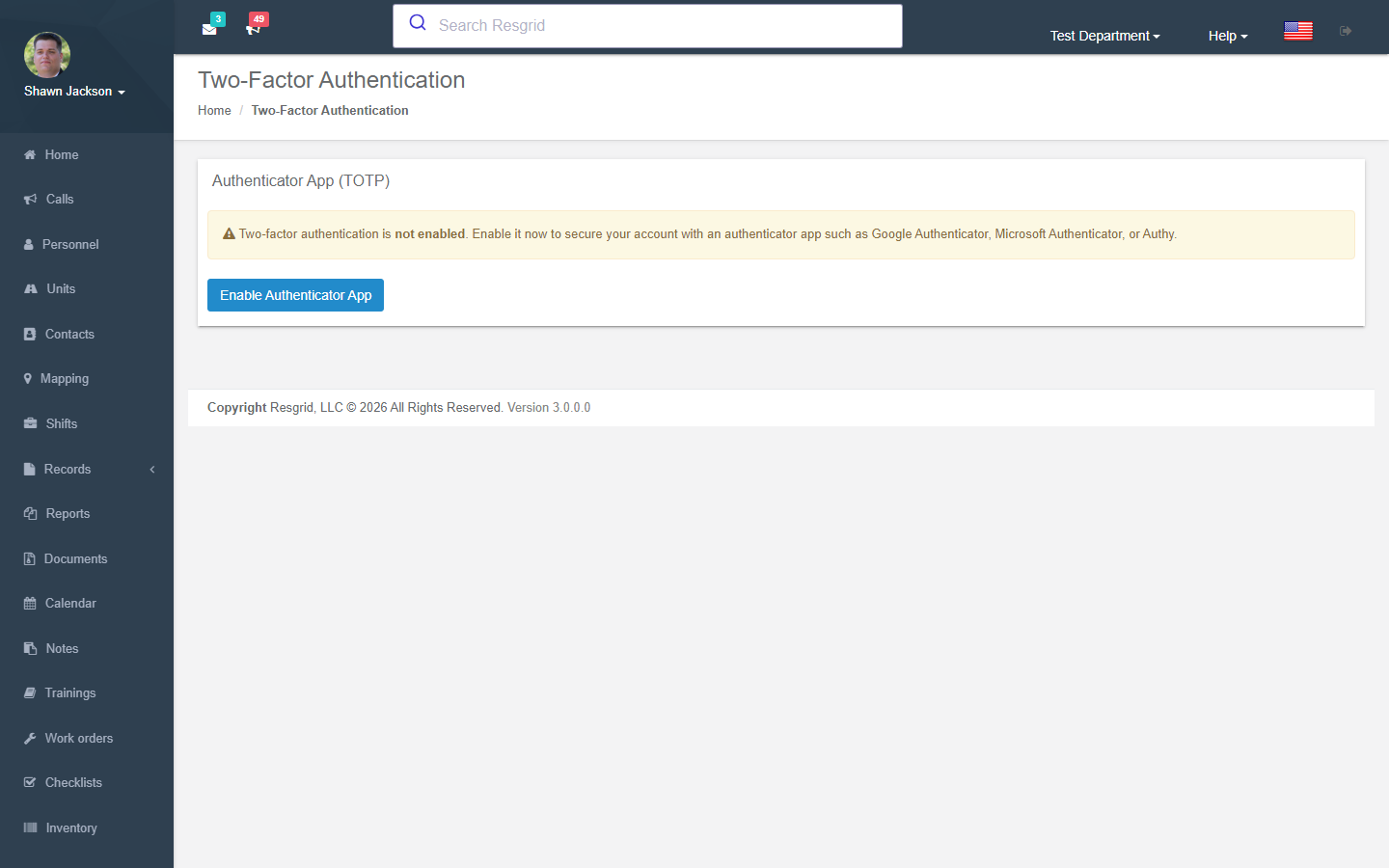
Resgrid supports authenticator apps (TOTP) — Google Authenticator, Microsoft Authenticator, Authy, 1Password and similar.
- Press Enable Authenticator App.
- Scan the QR code (or enter the key manually) in your app.
- Enter the 6-digit code and press Verify & Enable.
- Save your recovery codes somewhere safe. Each code can be used once if you lose your phone.
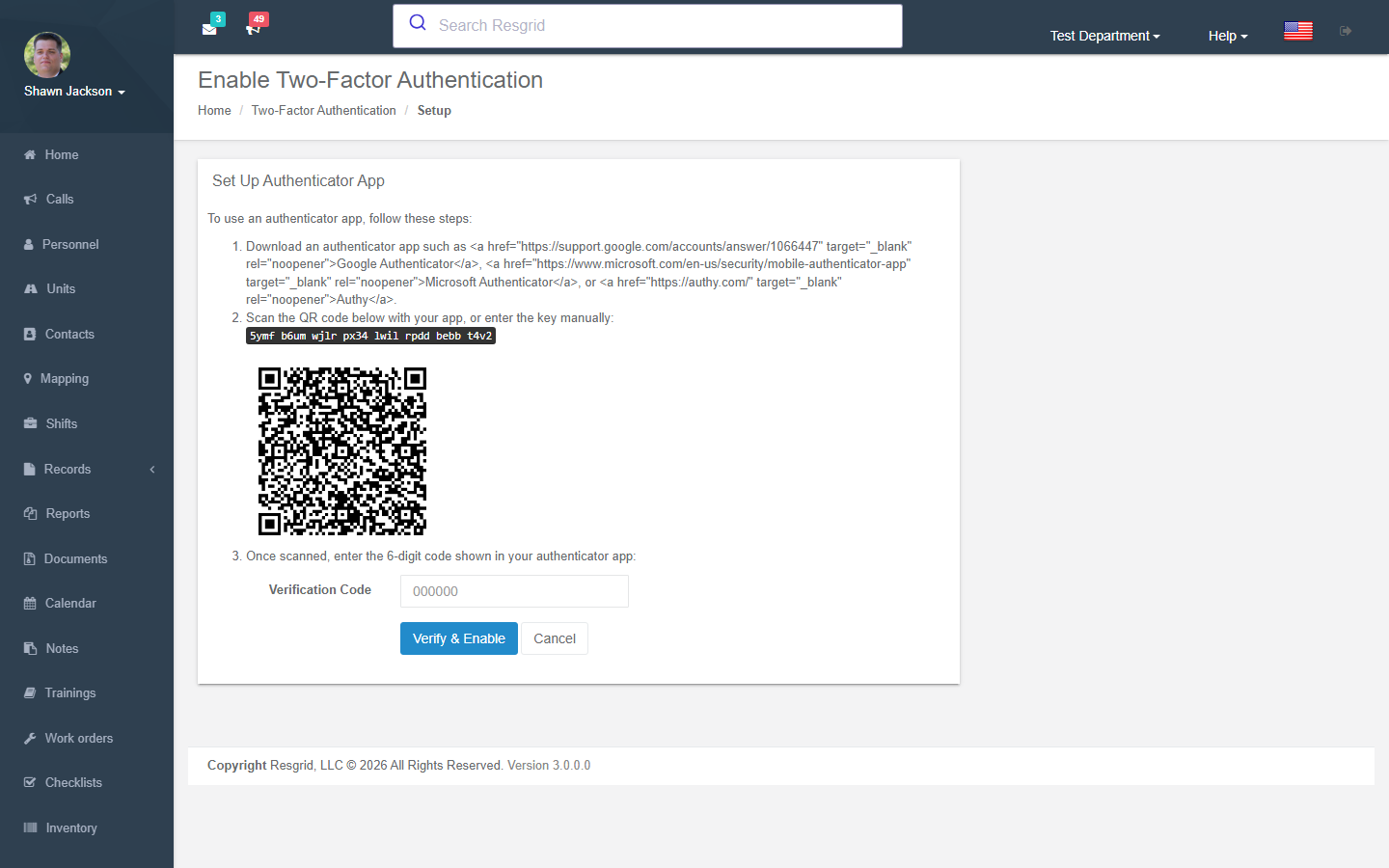
At login you will be asked for the current code; tick Don't ask again on this device for 30 days on trusted computers. Regenerate Recovery Codes when you are running low; Disable 2FA requires your current code and resets the authenticator key.
Some operations ask you to confirm your identity with a fresh code — revealing protected data, changing security settings, SSO configuration.
A department security policy can require 2FA for administrators (or everyone). If it does, you will be taken to the setup page until it is complete.
Active sessions
Profile dropdown → Two-Factor Authentication → Sessions (/User/AccountSecurity/Sessions).
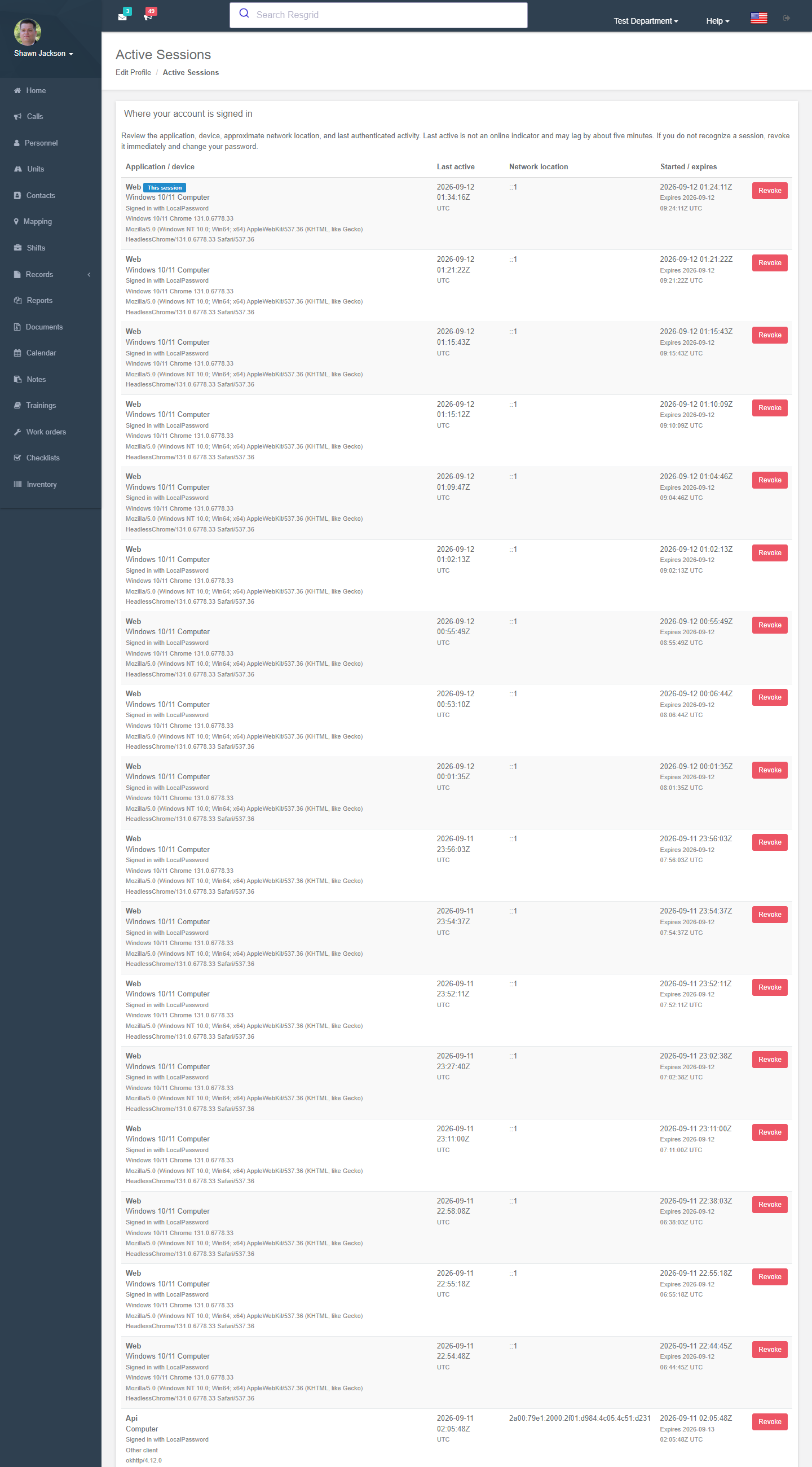
Lists everywhere your account is signed in — application / device, approximate network location, started / expires and last active. Revoke a single session, Sign out all other sessions, or Sign out everywhere (including this one). Administrators can also end a member's sessions from the Personnel page, and a department security policy can cap session lifetime.
Change username / password
- Change Username — enter the current username and the new one. Usernames must be unique across the whole Resgrid system.
- Change Password — current password plus the new password twice. Minimum length and complexity follow the department security policy.
Both are audited and end other sessions where the policy requires it.
Deleting your account
Profile → Delete Account (/User/Account/DeleteAccount).
- If you are the account owner (managing member) of any department you must first transfer ownership in Department Settings or delete that department.
- Deleting clears your personal information and login but does not remove department-owned data (calls, records, logs you wrote); that data belongs to the department and its retention rules.
- Deletion deactivates you in every department you belong to, removes your scheduled automations (report deliveries, scheduled status and staffing changes) and stops all notifications.
If you only want to leave one department, ask its administrators to remove you from the Personnel list instead.
Passkeys and SSO
Departments on the Enterprise tier can sign in with SSO (SAML / OIDC) — see Enterprise SSO. When SSO is enforced, password and 2FA settings are managed by your identity provider.
Technical reference
| Item | Value |
|---|---|
| Routes | /User/TwoFactor/{Index,Enable2FA,ShowRecoveryCodes,ViewRecoveryCodes,Disable2FA,Verify2FA}, /User/AccountSecurity/{ChangeUsername,ChangePassword,Sessions}, /User/Account/DeleteAccount |
| Login flow | /Account/LoginWith2fa, /Account/LoginWithRecoveryCode |
| Session model | Session id + authentication generation claims; revoking bumps the generation so API/BFF tokens minted for that session stop working |
| Policy | SessionSecurityConfig and the department security policy (/User/Security/SecurityPolicy) |