Weather Alerts
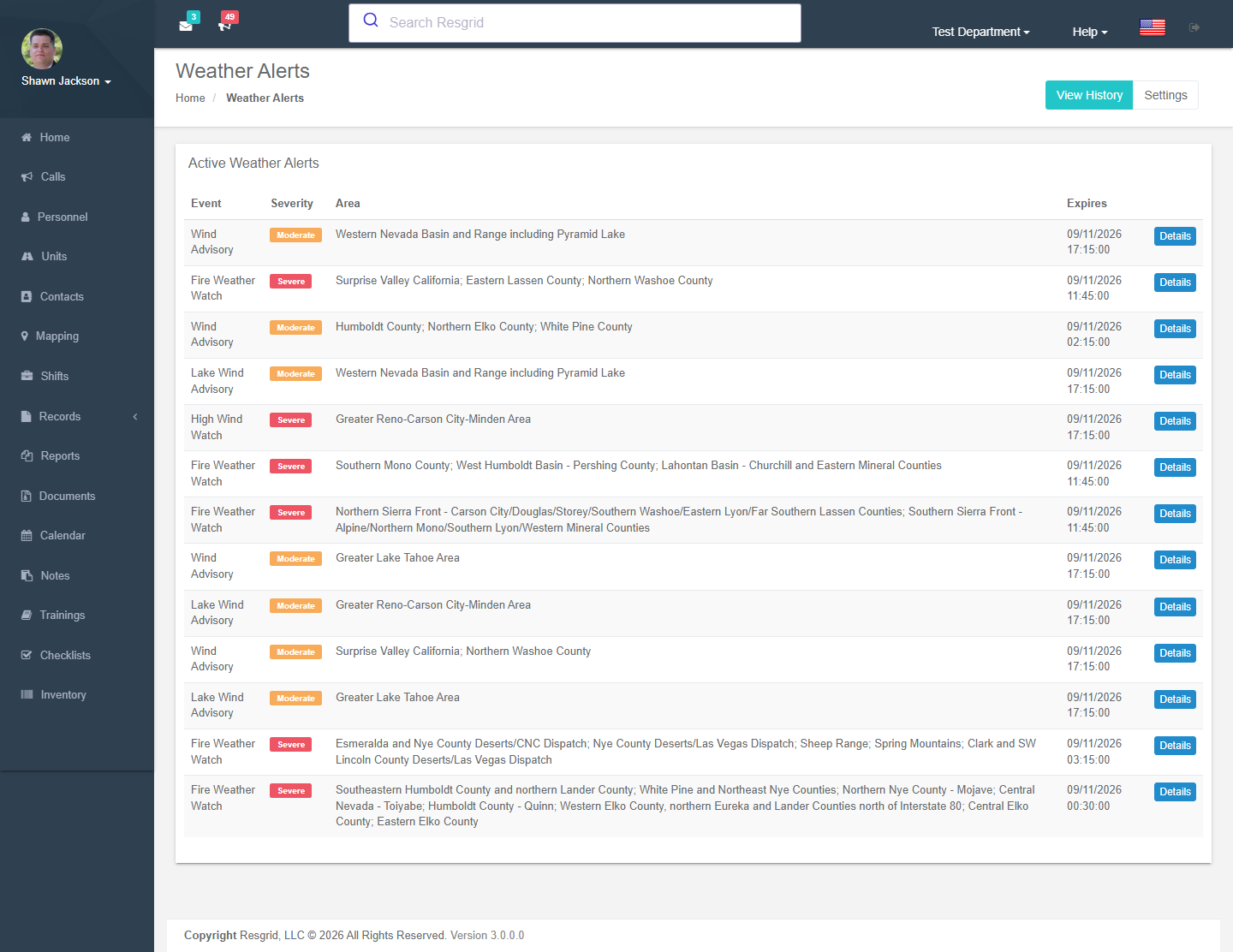
The Weather Alerts module automatically ingests severe weather alerts from government meteorological agencies, notifies department members, and optionally attaches relevant alerts to dispatch calls. It is designed for first responder organizations that need real-time situational awareness of severe weather in their jurisdiction.
Authorization: Viewing alerts requires the WeatherAlert_View permission. Managing sources and zones requires Department_Update (department administrator). Creating, updating, and deleting sources requires WeatherAlert_Create, WeatherAlert_Update, and WeatherAlert_Delete permissions respectively.
Navigation: Department Menu → Weather Alerts
Overview
The Weather Alert system connects to external weather providers, polls for alerts on a configurable schedule, and surfaces them inside Resgrid. The end-to-end flow is:
Admin configures a source → Background worker polls every 5 min
→ New/updated alerts ingested → Notifications sent to members
→ Alerts optionally attached to dispatch calls → Real-time push to connected clients
Supported providers:
| Provider | Coverage | Authentication |
|---|---|---|
| National Weather Service (NWS) | United States | None required |
| Environment Canada (EC) | Canada | None required |
| MeteoAlarm | Europe (EU countries) | Optional API key |
Views
Dashboard (Index)
The main weather alerts page displays all active alerts for your department. Each alert card shows the event type, headline, severity, affected area, and expiration time. Clicking an alert opens the details page.
Alert Details
The detail view for a single alert includes:
| Section | Content |
|---|---|
| Header | Event type, sender, and current status |
| Alert Details | Severity, urgency, certainty, and category |
| Timing | Onset, effective, sent, and expiration times (displayed in your department's time zone) |
| Affected Area | Human-readable area description and geographic polygon on the map |
| Description | Full alert description text |
| Instructions | Action instructions from the issuing agency |
| Source | The configured alert source that produced this alert |
History
The history view allows you to search past alerts within a date range. Alerts are listed in descending order by received time.
Settings (Admin)
The Settings page is the administration interface for configuring alert sources and department-level settings. Requires department administrator access.
Zones (Admin)
The Zones page manages geographic zones of interest for your department. Zones can be used to scope which alerts are relevant to your area of operations.
Alert Sources
Alert sources define the upstream feeds that Resgrid polls for weather data. Each source targets a specific provider and geographic filter.
Configuring a Source
Navigate to Weather Alerts → Settings and click Add Source.
| Field | Required | Description |
|---|---|---|
| Name | Yes | A descriptive name (e.g., "NWS Nevada Alerts") |
| Source Type | Yes | The provider: National Weather Service, Environment Canada, or MeteoAlarm |
| Area Filter | Yes | Geographic scope — see provider-specific guidance below |
| Poll Interval (minutes) | Yes | How often to poll this source. Minimum: 15 minutes |
| API Key | No | Required for MeteoAlarm if using authenticated access |
| Custom Endpoint | No | Override the default provider URL (HTTPS only; restricted to known provider domains) |
| Active | Yes | Toggle to enable or disable polling for this source |
The system enforces a minimum poll interval of 15 minutes regardless of the value entered. Setting a lower value will be automatically clamped to 15 minutes.
Area Filter by Provider
The Area Filter field accepts different values depending on the selected provider:
National Weather Service (NWS)
- State abbreviations (comma-separated):
NV,CA,AZ - Specific NWS zone codes:
WAZ021,ORZ001
Environment Canada (EC)
- Province codes (comma-separated):
ON,BC,AB
MeteoAlarm
- ISO 3166-1 alpha-2 country codes (comma-separated):
DE,FR,IT
Source Status
After a source has been polled, the Settings page shows its current status:
| Status | Description |
|---|---|
| Active | Source is enabled and will be polled on schedule |
| Inactive | Source is disabled; no polling occurs |
| Error | Last poll failed; the error message is displayed |
| Last Poll / Last Success | Timestamps of the most recent poll attempt and successful retrieval |
Deleting a Source
Click Delete next to a source on the Settings page. Deleting a source removes its configuration; already-ingested alerts from that source are retained.
Geographic Zones
Zones define geographic areas of interest within your jurisdiction. Each zone has a center point and a radius, and can be flagged as a primary zone.
Configuring a Zone
Navigate to Weather Alerts → Zones and click Add Zone.
| Field | Required | Description |
|---|---|---|
| Name | Yes | Zone name (e.g., "Station 1 Coverage Area") |
| Zone Code | No | NWS or Environment Canada zone code for this area |
| Center Location | Yes | Latitude and longitude of the zone center (lat,lng) |
| Radius (miles) | Yes | Radius in miles for proximity filtering |
| Active | Yes | Whether this zone is currently in use |
| Primary Zone | No | Marks this as the primary zone for the department |
Department Settings
Weather alert behavior is controlled by department-level settings. Navigate to Weather Alerts → Settings and scroll to the Settings section.
| Setting | Description | Default |
|---|---|---|
| Weather Alerts Enabled | Master toggle. When disabled, no alert processing, notifications, or call attachments occur | Off |
| Minimum Severity | Minimum severity level to display and import. Alerts below this threshold are ignored | All severities |
| Auto Message Severity | Severity threshold for automatic system messages to all department members | Severe |
| Call Integration | Automatically attach active alerts to new and updated dispatch calls | Off |
| Cache Duration (minutes) | How long provider responses are cached to reduce duplicate API calls | 10 minutes |
Severity Levels
Severity values range from highest to lowest priority:
| Level | Description |
|---|---|
| Extreme | Exceptional threat to life or property |
| Severe | Significant threat to life or property |
| Moderate | Possible threat to life or property |
| Minor | Minimal threat |
| Unknown | Severity not defined by the issuing agency |
The Auto Message Severity threshold works inclusively — setting it to Severe means both Extreme and Severe alerts trigger system messages.
Notifications
When a new alert meets the department's Auto Message Severity threshold, Resgrid automatically sends a broadcast system message to all department members. This message includes:
- Alert event type and headline
- Severity, urgency, certainty, and category
- Onset, expiration, and effective times (in the department's configured time zone)
- Affected area description
- Full description and instructions from the issuing agency
- Source attribution
Messages are delivered via push notification, email, and/or SMS based on each member's contact preferences.
Each alert triggers at most one automatic system message. Once a notification has been sent for an alert, it will not be re-sent even if the alert is updated.
Call Integration
When Call Integration is enabled, Resgrid automatically attaches relevant active weather alerts to dispatch calls as system call notes when a call is created or updated.
- If the call has a geolocation, only alerts within 50 miles of the call location are attached.
- Alerts without a defined geographic polygon are treated as area-wide and are always attached.
- Each alert is attached at most once per call — duplicate attachments are suppressed automatically.
Each attached alert note follows this format:
[WeatherAlert:{alertId}] {Event Type}
{Headline}
Area: {Affected Area Description}
Severity: {Severity Level}
Expires: {Expiration Time}
Instructions: {Instruction Text}
Real-Time Updates
Resgrid pushes real-time weather alert events to all connected web clients via SignalR. No manual refresh is needed to see new or updated alerts.
| Event | Trigger |
|---|---|
| WeatherAlertReceived | A new alert has been ingested for the department |
| WeatherAlertExpired | An active alert has passed its expiration time |
| WeatherAlertUpdated | An existing alert has been updated by the upstream provider |
API Reference
Weather alert data is available through the Resgrid REST API (v4). All endpoints require authentication and the appropriate permission claim.
| Method | Endpoint | Permission | Description |
|---|---|---|---|
| GET | /api/v4/WeatherAlerts/GetActiveAlerts | View | All active alerts for the department |
| GET | /api/v4/WeatherAlerts/GetWeatherAlert/{alertId} | View | Single alert by ID |
| GET | /api/v4/WeatherAlerts/GetAlertHistory?startDate=&endDate= | View | Historical alerts in a date range |
| GET | /api/v4/WeatherAlerts/GetAlertsNearLocation?lat=&lng=&radiusMiles= | View | Active alerts near a coordinate (max 500 mi radius) |
| GET | /api/v4/WeatherAlerts/GetSources | View | All configured sources |
| POST | /api/v4/WeatherAlerts/SaveSource | Create / Update | Create or update a source |
| DELETE | /api/v4/WeatherAlerts/DeleteSource/{sourceId} | Delete | Delete a source |
| GET | /api/v4/WeatherAlerts/GetZones | View | All configured zones |
| POST | /api/v4/WeatherAlerts/SaveZone | Create / Update | Create or update a zone |
| DELETE | /api/v4/WeatherAlerts/DeleteZone/{zoneId} | Delete | Delete a zone |
| GET | /api/v4/WeatherAlerts/GetSettings | View | Get department weather alert settings |
| POST | /api/v4/WeatherAlerts/SaveSettings | Update | Save department weather alert settings |
All timestamps returned by the API are converted to the department's configured time zone.
Alert Lifecycle
The following describes the complete lifecycle of a weather alert within Resgrid:
- Ingestion — The background worker runs every 5 minutes, polling all active sources whose poll interval has elapsed. The appropriate provider (NWS, EC, or MeteoAlarm) fetches alerts from the upstream API.
- Deduplication — Each fetched alert is matched against existing records by its external ID and source. New alerts are inserted; existing alerts are updated with the latest content.
- Update/Cancel chains — If a new alert references a prior alert (e.g., an update or cancellation), the referenced alert is automatically marked as Cancelled.
- Expiration — Each worker cycle marks alerts whose expiration time has passed as Expired.
- Notification — Each worker cycle sends system messages for any alert that meets the severity threshold and has not yet had a notification sent.
- Call attachment — When a call is created or updated via the API and Call Integration is enabled, active alerts near the call location are attached as call notes.
- Real-time push — Connected clients receive SignalR events for new, updated, and expired alerts immediately.
Localization
The Weather Alerts module is available in the following languages:
English, Spanish, German, French, Italian, Polish, Swedish, Ukrainian, Arabic
The display language is determined by each user's language preference.
Setup examples
| Department type | How to set it up |
|---|---|
| Fire / wildland | Red flag warnings and wind advisories for your zones → notification to officers. |
| Emergency management | All watches/warnings for county zones → EOC duty officer; severity threshold Warning. |
| SAR | Winter storm and avalanche products for mountain zones. |
| Transit / delivery | Winter weather advisories → operations. |
Technical reference
Interactions with Other Modules
| Module | Interaction |
|---|---|
| Dispatch / Calls | Active alerts can be automatically attached as system call notes when Call Integration is enabled |
| Messages | Automatic broadcast messages are sent via the Messages module for qualifying alerts |
| Department Settings | Time zone is used for all alert timestamp display and message formatting |
| Mapping | Alert polygon geometry is displayed on the map in the alert detail view |
| Notifications | A link to Weather Alerts is accessible from the Notifications page |
| Permissions | View, Create, Update, and Delete operations are governed by dedicated weather alert permission claims |